How to create a Meta ad account
Meta asks you for three things and fills in two of them itself — Los Angeles time and US dollars. Both are permanent, and the confirmation screen never shows them to you.
You want a Meta ad account. Not a campaign, not a pixel, not an ad — just the account, so that it exists and you can decide what to do with it later. The first thing to know is that on Meta the ad account is not the first object. A business portfolio comes first, and the ad account is created inside it. Almost everything people get wrong about Meta's setup starts with treating those two as the same thing.
The creation itself takes about a minute. It is a three-step wizard with three fields, and two of those three are permanent. Meta pre-fills both of them — with its own head office's time zone and currency. Nothing on that screen says the choice is final. The screen that does carry a warning warns about something else entirely.
Rather hand this to an agent?
Copy a ready-made prompt for Claude, ChatGPT, Codex or Cursor. It checks whether your agent can drive your browser, interviews you on the settings that can't be undone, then does the rest with you.
You are helping me create a Meta (Facebook) ad account. I have not started yet.

STEP 0 — decide how you'll help.
Check whether you have a browser or computer-use tool available — something that
can drive my own signed-in Chrome, such as the Claude in Chrome or Codex for
Chrome extension.
- If you have one: say so and offer to drive. Navigate for me, fill the fields
  I've confirmed, and read each screen back before we move on.
- If you don't have one: tell me exactly what I'd need to enable in the client
  I'm using to give you one, and ask whether I want to set that up before we
  continue. Don't assume I know.
- If I decline, or it isn't available: just talk me through it, one screen at a
  time.

Whichever way we do it, two things are mine and never yours: I click the final
Create button, and I accept the platform's terms. Never ask me for my password.

STEP 1 — interview me before anything is opened.
Ask me these and wait for my answers. Two of the answers can never be changed once the account exists.
1. Do I already have a Meta business portfolio, or is this my first?
2. Which country does the business bill from?
3. Which currency should the ad account use?
4. Which time zone should reporting use?
5. Is this account for my own business, or for a client?

STEP 2 — then walk me through it.

Facts you must not get wrong:

- Meta pre-fills the time zone as (GMT-07:00) America/Los Angeles and the currency as USD — its own head office, not mine. BOTH ARE PERMANENT and the screen carries no warning at all.
- "Changing" either one later closes the ad account and creates a new one. The closed account can never be reactivated, its history cannot be merged into the replacement, and the change is allowed only once every 60 days.
- An ad account can never be removed from its business portfolio, or moved to a different one.
- A brand-new business portfolio can create exactly ONE ad account. The cap lifts "after several weeks of following our policies" — NOT when a payment method is added. So a wrong currency on day one cannot be fixed by paying.
- Creation is a three-step wizard: Details, Usage, Confirm. The Confirm step does NOT show the time zone or currency back to me, so check them with me on the Details step.
- Type into the time zone and currency dropdowns rather than scrolling. The time zone list opens onto other GMT-07:00 American cities.
- "Another business or client" on the Usage step is about ad transparency — whose name appears on the ad — not about permissions.
- There is no forced campaign. At the end, decline "Add payment info" and click Done. The account is Active without a card: billing gates delivery, not existence.
- My ad account ID is the number on the account panel and in the Ads Manager header — NOT the longer number in the address bar after selected_asset_id.
- The billing country defaults to United States of America even when the currency isn't USD. Unlike the settings above, that one is editable — remind me to fix it.

Start with STEP 0, then ask me the questions.
The short version
- A business portfolio comes first. The ad account is created inside it, at Settings → Accounts → Ad accounts → Add.
- Time zone and currency are permanent, and they arrive pre-filled as (GMT-07:00) America/Los Angeles and USD — US Dollars. Change them before you click Next.
- Type into the dropdowns, don't scroll. The time zone list opens onto other GMT-07:00 American cities, not onto anything near you.
- Meta does show a warning — about the ad account being stuck in the portfolio forever. Neither permanent setting appears on the confirmation screen at all.
- There is no forced campaign. Payment is offered once, with a Done button beside it. Decline it; the account is Active either way.
- A new portfolio can create exactly one ad account. The cap lifts "after several weeks of following our policies" — not when you add a card.
Why this is harder than it should be
Meta is the most written-about platform in advertising, and the writing has drifted from the product. Every current guide describes ad account creation as a single flat form with two fields, "name and timezone". It is a three-step wizard — Details, Usage, Confirm — with a progress rail down the left and three fields on the first panel. The missing third field is currency, which is also the field those same guides warn about elsewhere.
Then there is a straight contradiction. Third-party guides say flatly that a Meta ad account's currency cannot be changed. Meta's own Help Centre has an article titled Change the currency you use for Meta ads. Both are true, and the reconciliation is worse than either claim on its own: changing the currency closes your ad account and creates a new one. That is covered properly in its own section below, because it is the single most expensive thing in this flow and no guide currently joins it up.
Everything below was walked end to end in Meta Business Suite on 1 September 2026, on a real, empty business portfolio. Every screenshot is from that run.
Before you start
Five things, and each one matters later in a way the wizard does not tell you:
| What you need | Why it matters |
|---|---|
| A personal Facebook profile | Business portfolios are created and administered by people. Your personal profile is the key; it is not shown to anyone as part of your ads, and it stays separate from the business assets it holds. |
| A business portfolio | The container. The ad account is created inside it and can never be moved out of it, so decide which portfolio should own the account before you create anything. If you have none, create it at business.facebook.com first. |
| The currency and time zone, decided | Both permanent. Everything the account ever spends is denominated in the currency, and every day boundary in every report is drawn by the time zone. Getting either wrong is a new account, not an edit. |
| A Facebook Page — for the ads, not the account | Unlike LinkedIn, Meta does not bind a Page to the ad account at creation, so you can do this step later. But no Page means no ads: the Page is the identity your ads run under, on Facebook and Instagram alike. |
| A payment method — but not yet | Not required to create the account, and not required for it to sit there as Active (step 6). Required before anything is delivered. |
You do not need a campaign, a pixel, a budget, a verified business, or a payment method to get an ad account that exists and has an ID.
Step 1: Open the ad accounts screen
Go to business.facebook.com, open the portfolio switcher at the top left, and pick the portfolio that should own this account. Click the gear beside its name to open Settings, then Accounts → Ad accounts in the left rail.
If this is a fresh portfolio you will see an empty state reading "No ad accounts added". That is the correct starting point, and it is worth pausing on: the portfolio already exists and has nothing in it. Portfolio and ad account are two different objects, and you are about to create the second one inside the first.
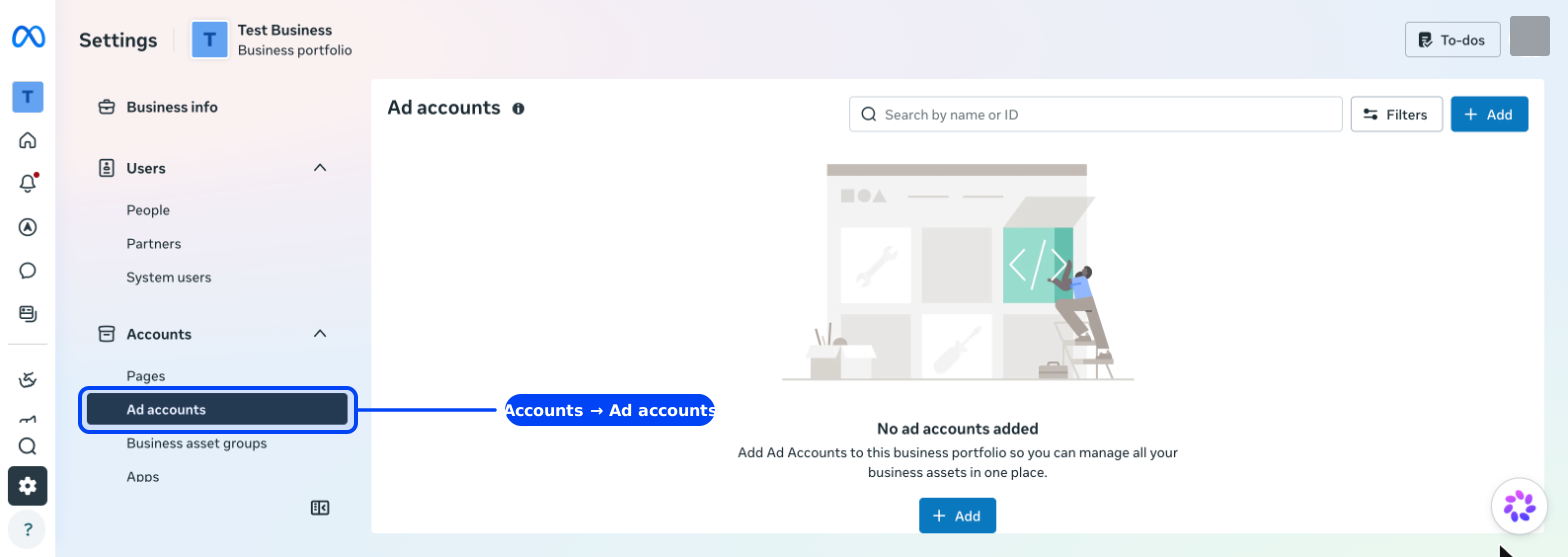
Meta also added a Business Portfolio panel inside Ads Manager in 2026, behind the gear icon, which offers the same "Create a New Ad Account" action. Either route reaches the same wizard. The Business Suite route is the one every existing guide describes, so it is the one used here.
Step 2: Read the line above the three options
Click Add. Before you choose anything, read the sentence Meta puts directly under the dialog's title:
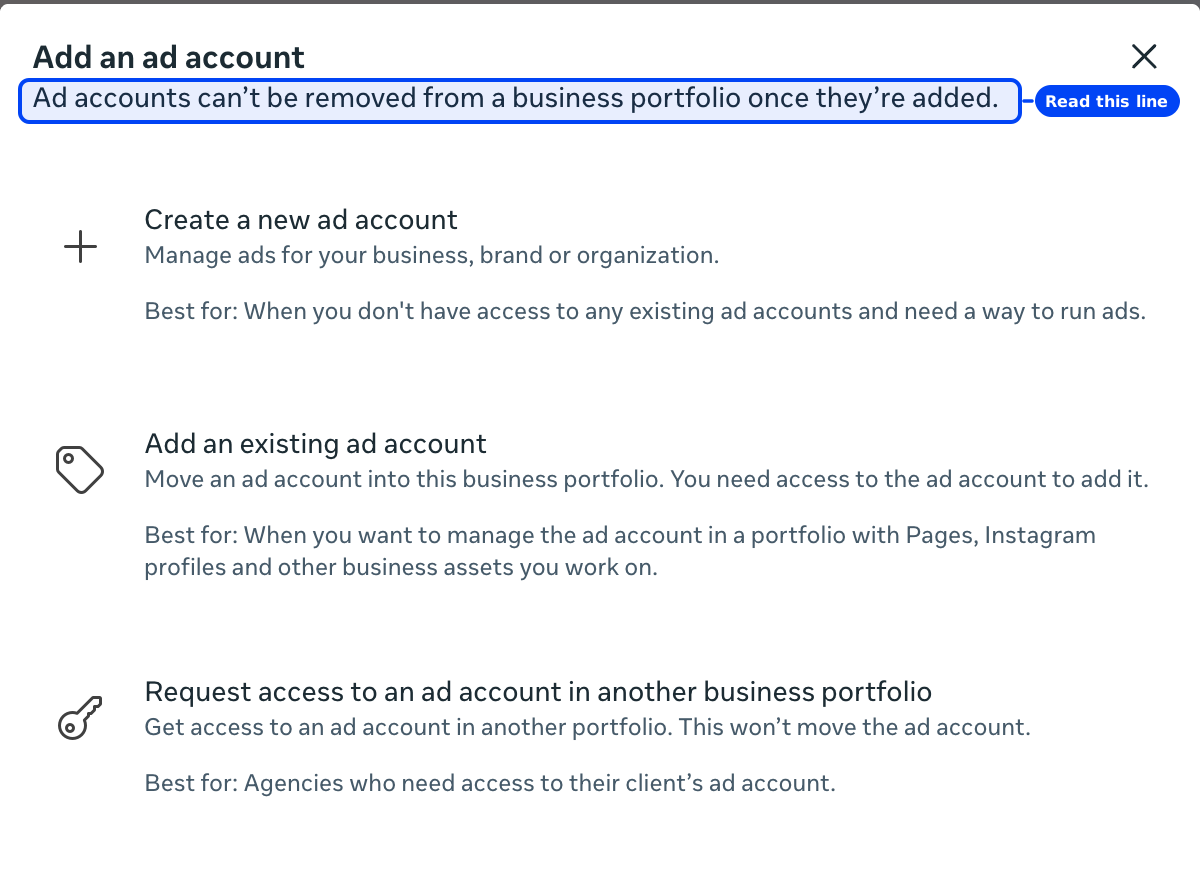
"Ad accounts can't be removed from a business portfolio once they're added." This is not a formality. There is no delete, and there is no move. Later, the only destructive control the account offers is Deactivate. If you are not certain this is the right portfolio, close the dialog and sort that out first.
Three options follow, and Meta labels each with who it is for:
- Create a new ad account — "when you don't have access to any existing ad accounts and need a way to run ads." This is you.
- Add an existing ad account — moves an account you already control into this portfolio. Permanent, per the line above.
- Request access to an ad account in another business portfolio — "Agencies who need access to their client's ad account." Meta notes explicitly that this "won't move the ad account", which is exactly the right behaviour for agency work and the option most people should use instead of the second one.
Pick the first.
Step 3: The two settings Meta fills in for you
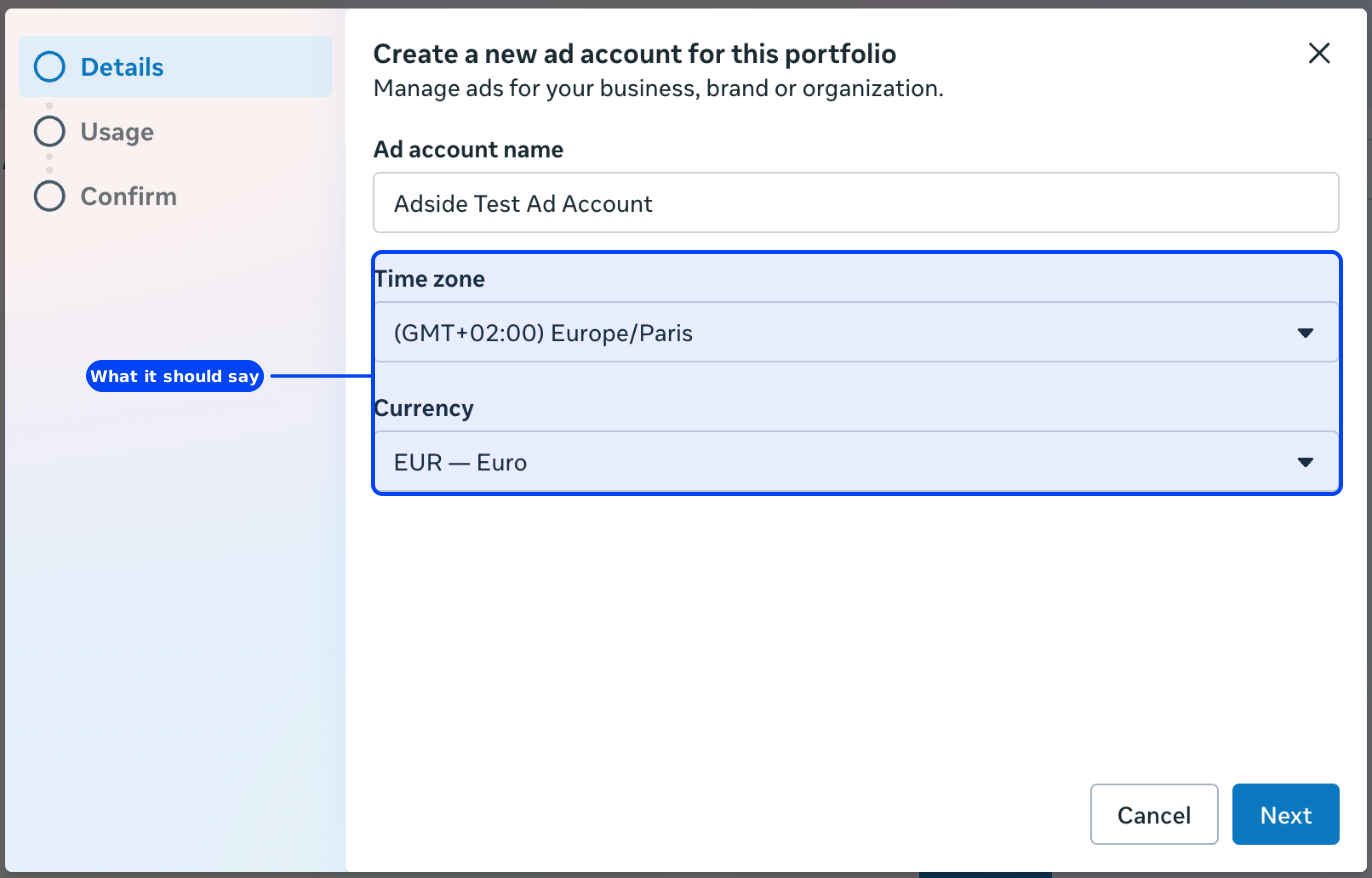
The Details panel has three fields. One of them you type. The other two are already filled in:
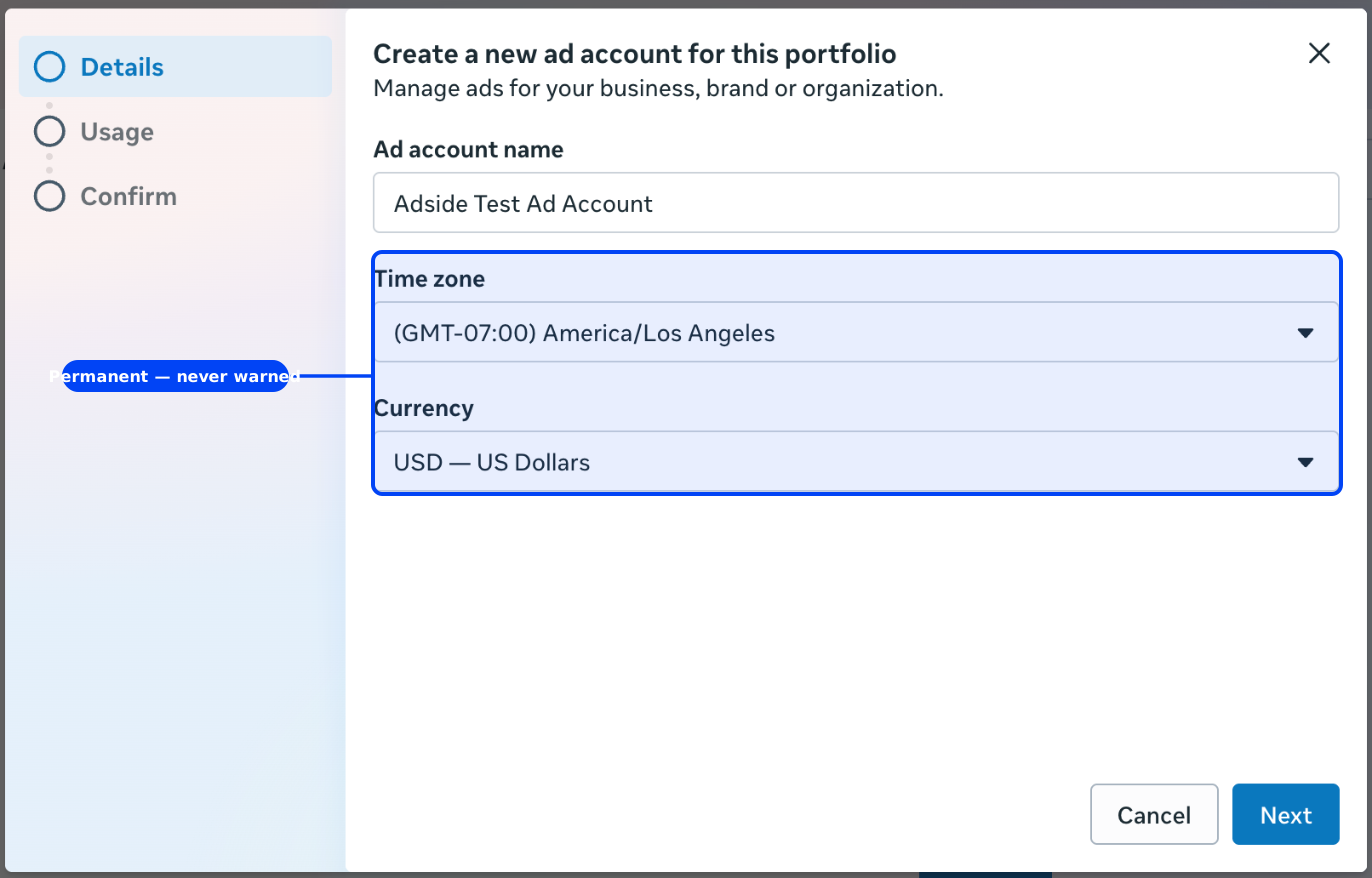
The account name is the only field here you can change afterwards, so it deserves the least of your attention. Time zone and currency are the two that are permanent, and they arrive as (GMT-07:00) America/Los Angeles and USD — US Dollars — Meta's own head office, not yours. This walkthrough was run from Paris and got the same pair.
Now the practical part, which no guide mentions. Open the time zone dropdown and it does not open at the top of an alphabetical list. It opens anchored on the current selection, which means the first thing you see is more American cities in the same offset:
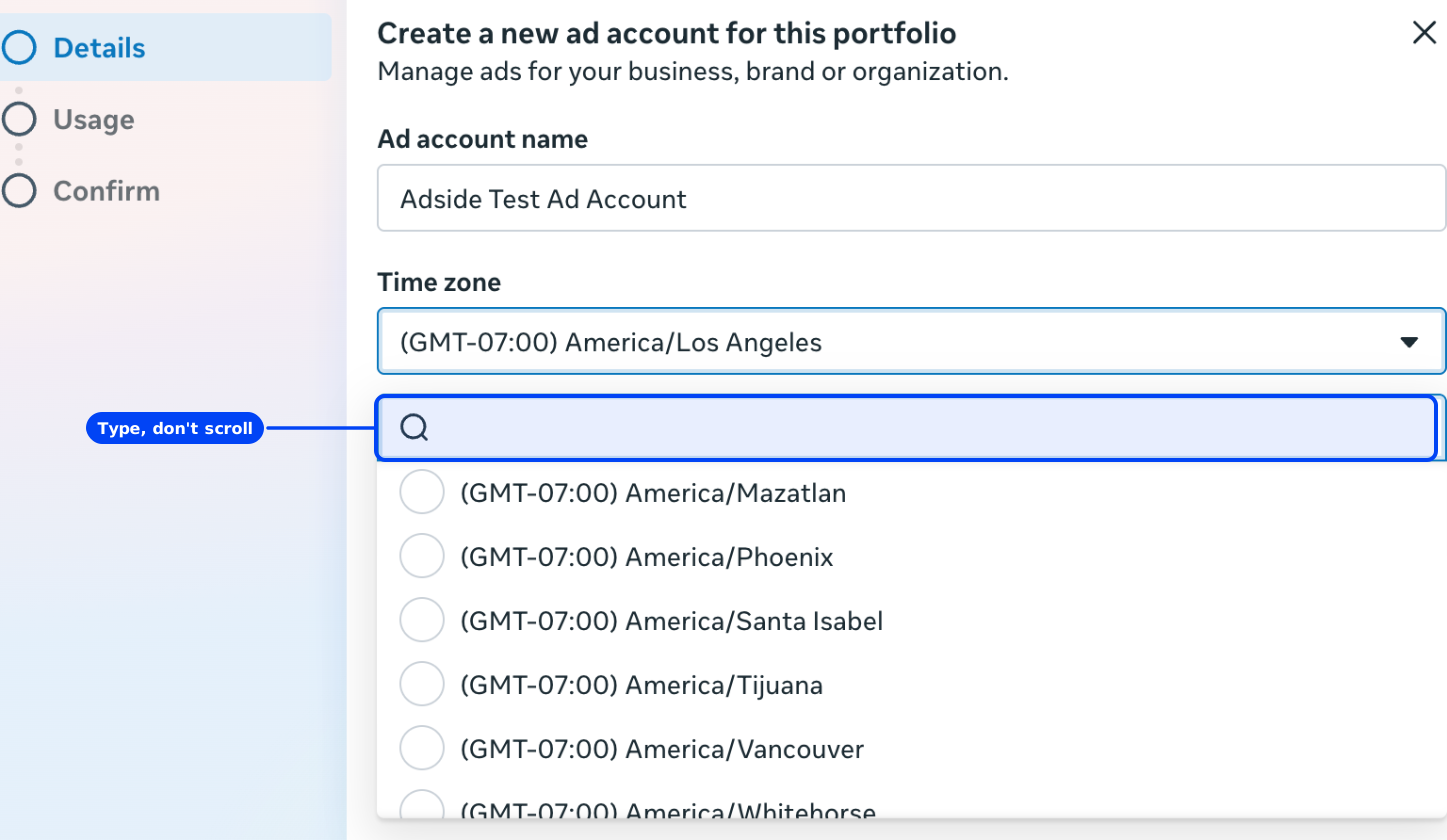
There is a search box at the top of that list. Use it. Typing "Paris" reduces the list to one row. The currency dropdown has no search box, but typing still jumps the list by prefix — type "Euro" and EUR lands under the cursor. The rule for both is the same: type, don't scroll.
Here is the same panel with both corrected, which is what it should look like before you click Next:
Step 4: Who will use this ad account
The Usage panel asks a question that sounds like a permissions question and is not one. "My business" is pre-selected; the alternative is "Another business or client".
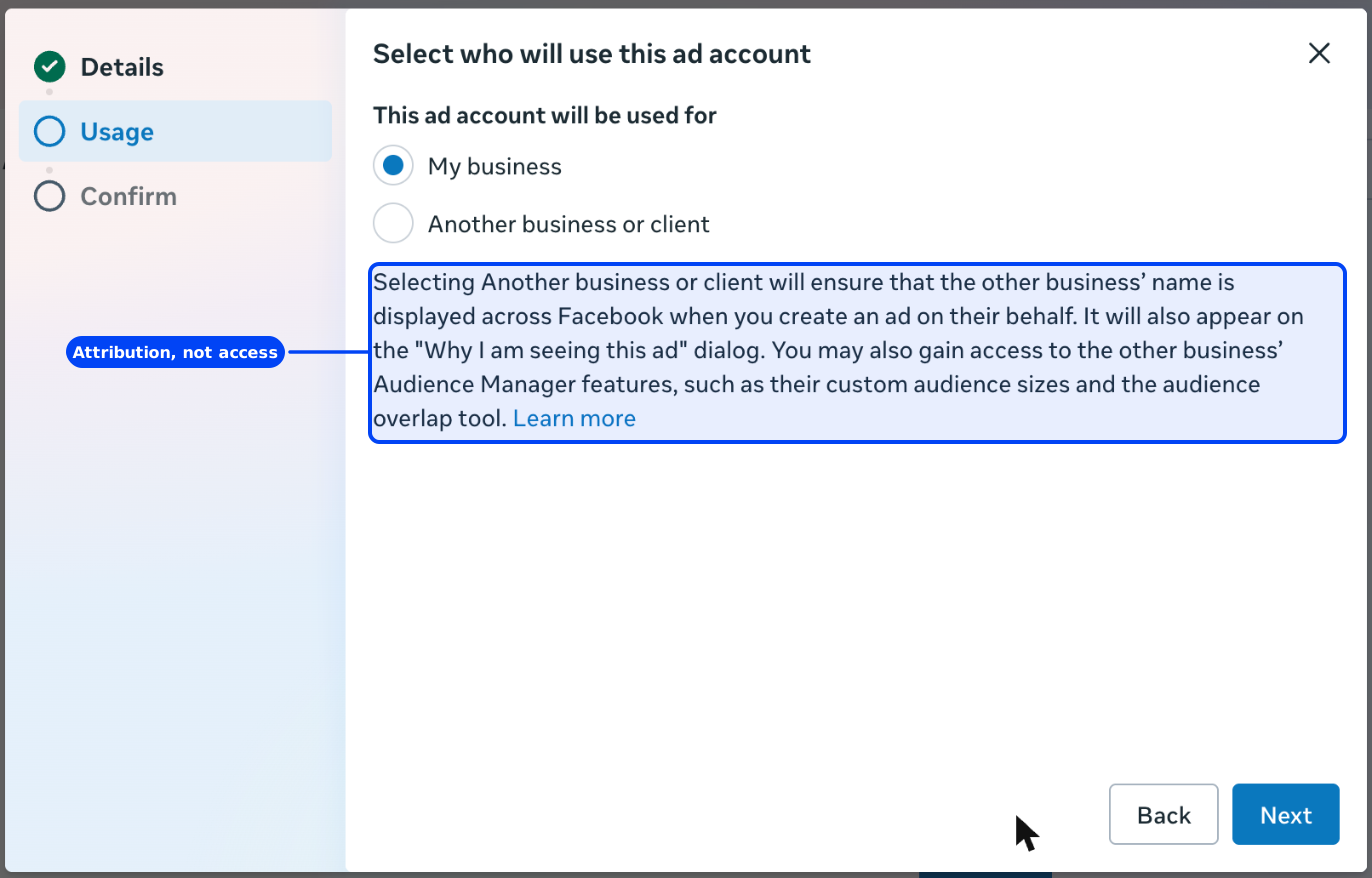
Meta's own text is clear: choosing "Another business or client" means "the other business' name is displayed across Facebook when you create an ad on their behalf", including in the "Why am I seeing this ad" panel. It is an ad-transparency and attribution setting, not an access-control one. Access is granted separately, afterwards, and is covered in step 7.
If you are a brand setting up your own account, leave it on My business.
Step 5: The confirmation warns about the wrong thing
The last panel summarises what you are about to create. Look carefully at what it chooses to tell you:
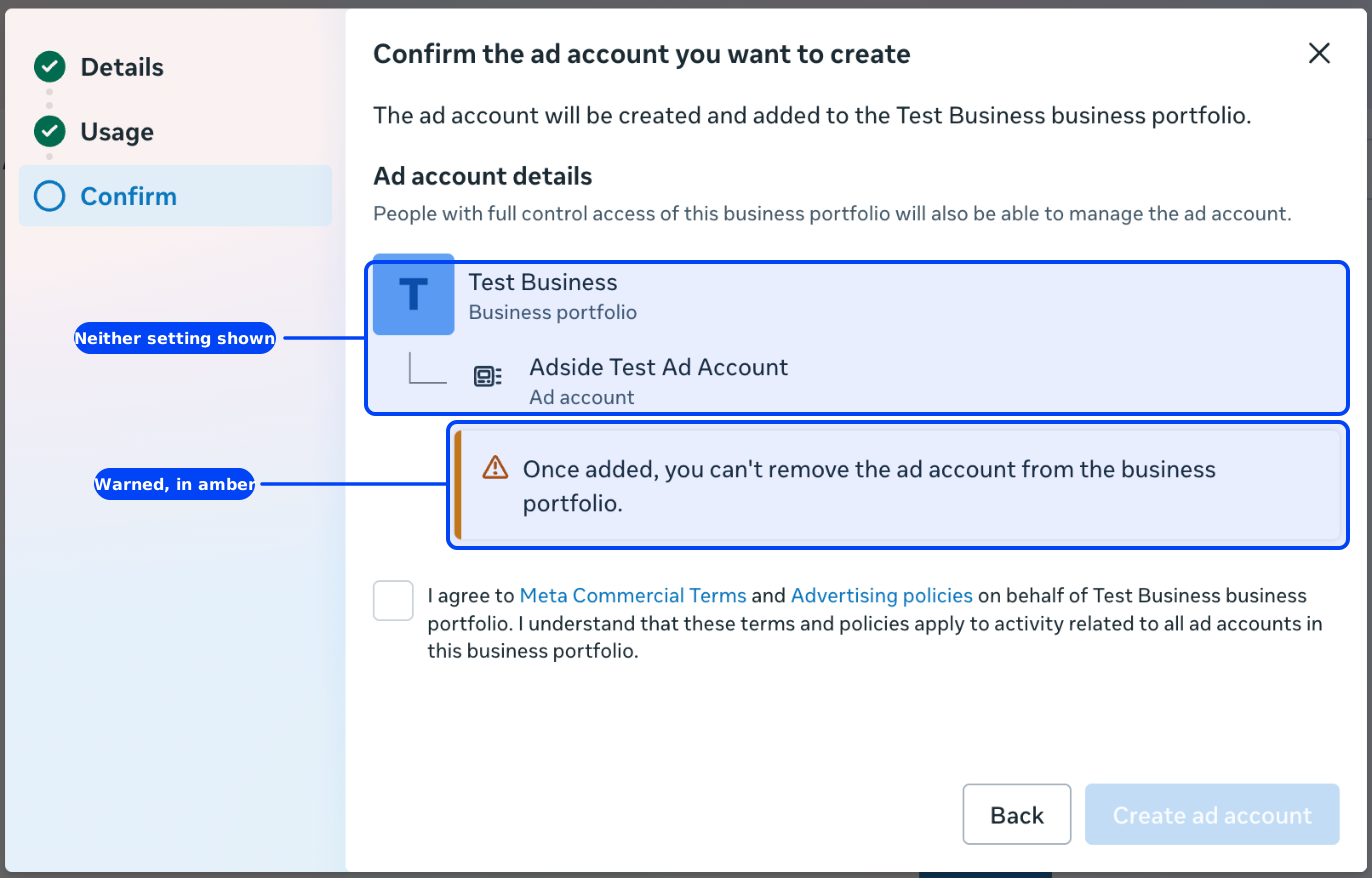
The summary lists the portfolio and the account name. Then an amber warning triangle: "Once added, you can't remove the ad account from the business portfolio."
The time zone and the currency are not on this screen. Not warned about, not flagged, not even displayed back to you for a second look. Meta spends its entire warning budget on the portfolio binding — which is genuinely permanent, and which it has now told you twice — and spends none of it on the two settings it filled in on your behalf a moment ago.
Below the warning, a checkbox agreeing to Meta's Commercial Terms and Advertising policies on the portfolio's behalf. It gates the Create ad account button; until you tick it, hovering the button says "You must agree to the terms before you can continue." Tick it and click Create.
What "change it later" actually costs
You will find, once the account exists, a screen that appears to contradict everything above. In Billing & payments, opening the account and clicking Edit on the Business info card gives you this:
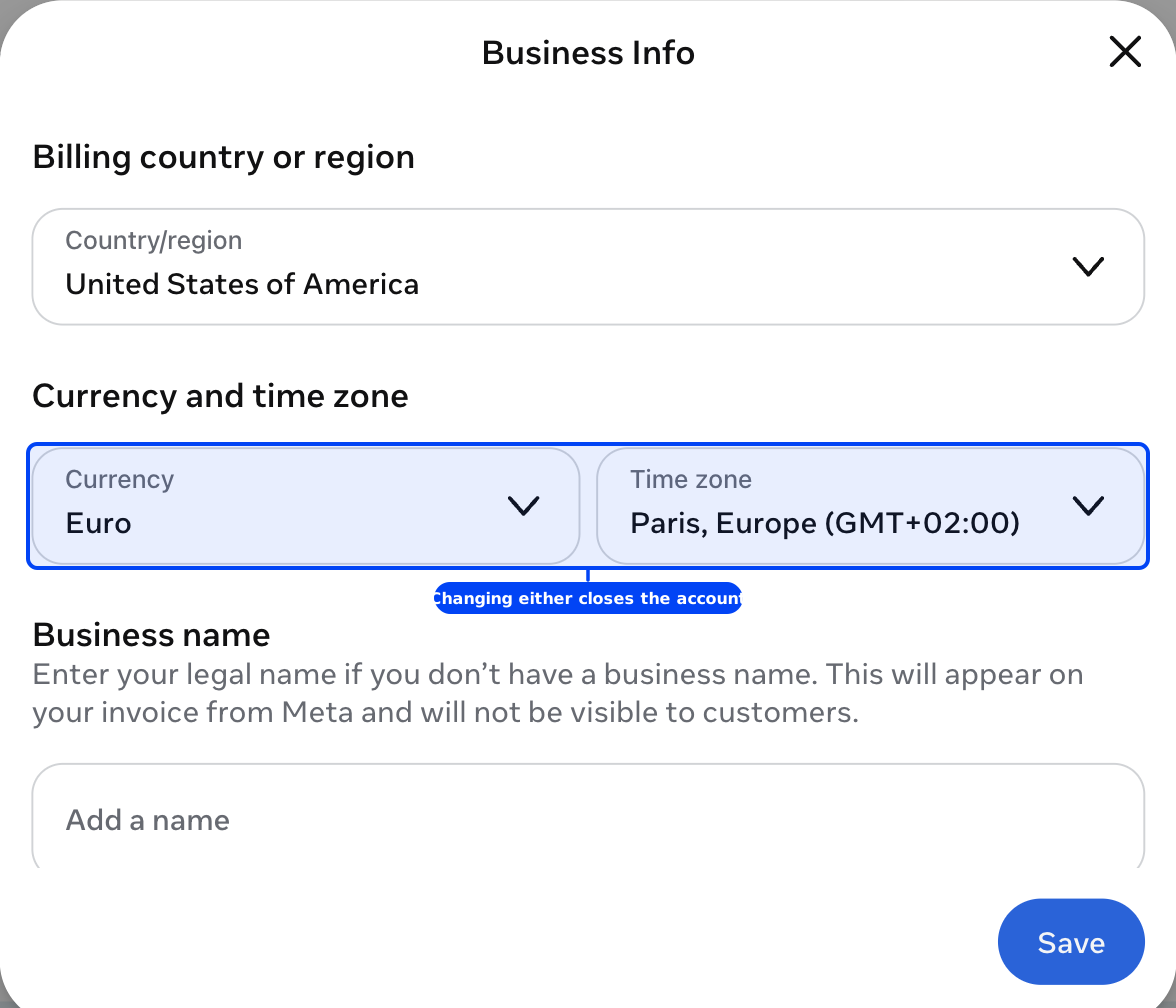
Two editable dropdowns headed "Currency and time zone", sitting next to a billing country selector and a business name field, under an unremarkable Save. No amber, no triangle, no sentence. It looks exactly like the settings form it is dressed as.
It is not one. Saving a currency change here does the following, per Meta's own warning at save time:
- Your ad account is closed and a new one is created in its place. Active ads stop.
- The closed account cannot be reactivated by any means. You can still read it; you can never run in it again.
- All historical campaign data stays in the dead account and cannot be merged into the new one.
- You can request this once every 60 days, and only with no outstanding balance.
Which is the point at which the earlier warning stops being an abstraction. The dead account cannot be removed from your portfolio. It stays there, permanently, next to its replacement. And there is one more constraint that closes the trap:
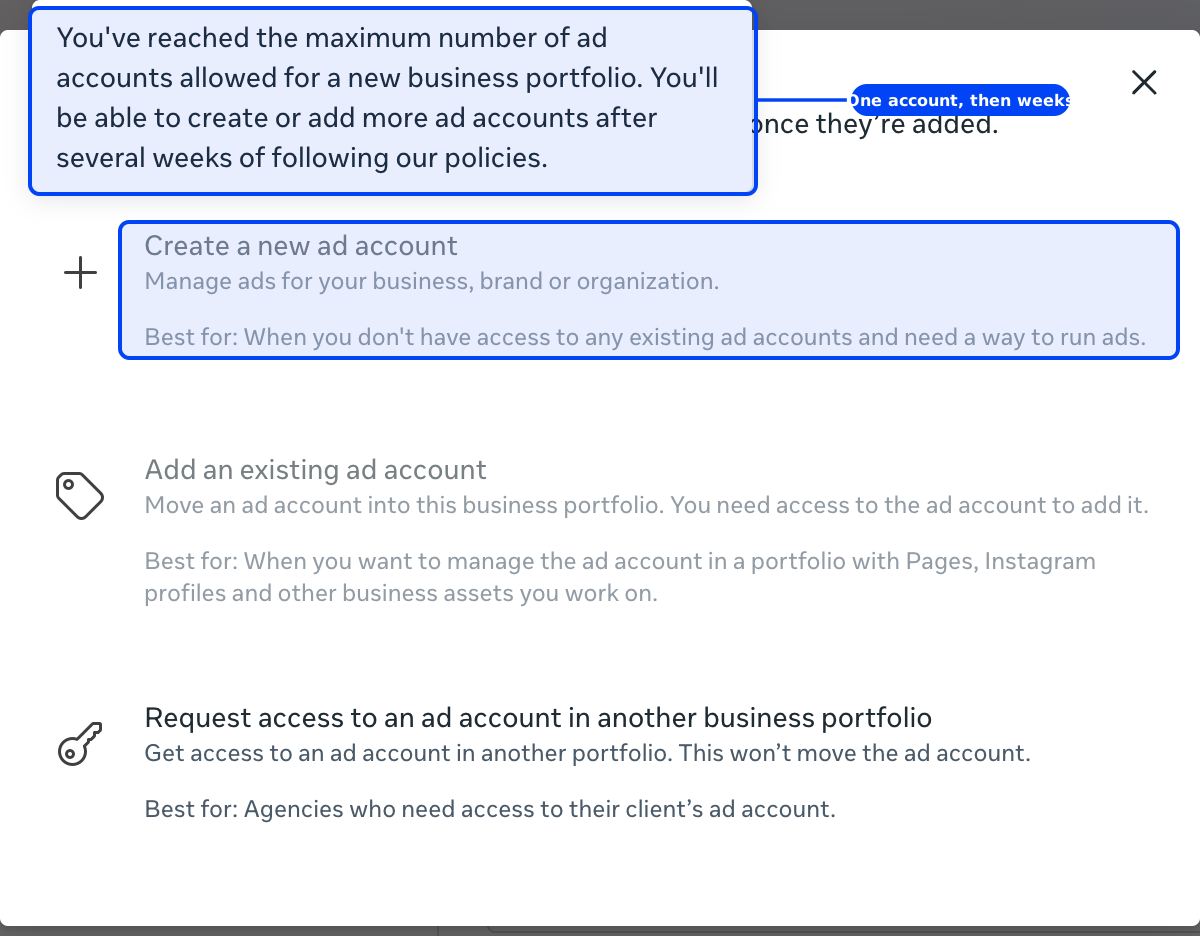
A new business portfolio can create exactly one ad account. Ten minutes after creating the first, the same dialog has "Create a new ad account" and "Add an existing ad account" greyed out. Hover the disabled row and Meta explains why: "You've reached the maximum number of ad accounts allowed for a new business portfolio. You'll be able to create or add more ad accounts after several weeks of following our policies."
Read that carefully, because it is not what the guides say. The common claim is that the cap lifts to three "after you start running ads and make a payment". Meta's own tooltip says several weeks of following our policies. The gate is time and standing, not spend — so a brand that picks the wrong currency on day one cannot buy its way out of the mistake by adding a card. It waits.
Thirty seconds on the Details panel, then. That is the whole argument of this guide.
Step 6: Decline the payment prompt
Meta's wizard ends on a genuinely plain confirmation. There is no campaign builder, no objective pre-selected, no lead-capture form standing between you and the exit — which makes Meta the easiest of the three big platforms to get an account out of. Google forces you through a campaign; LinkedIn drops you into an ad set builder. Meta just says it worked.
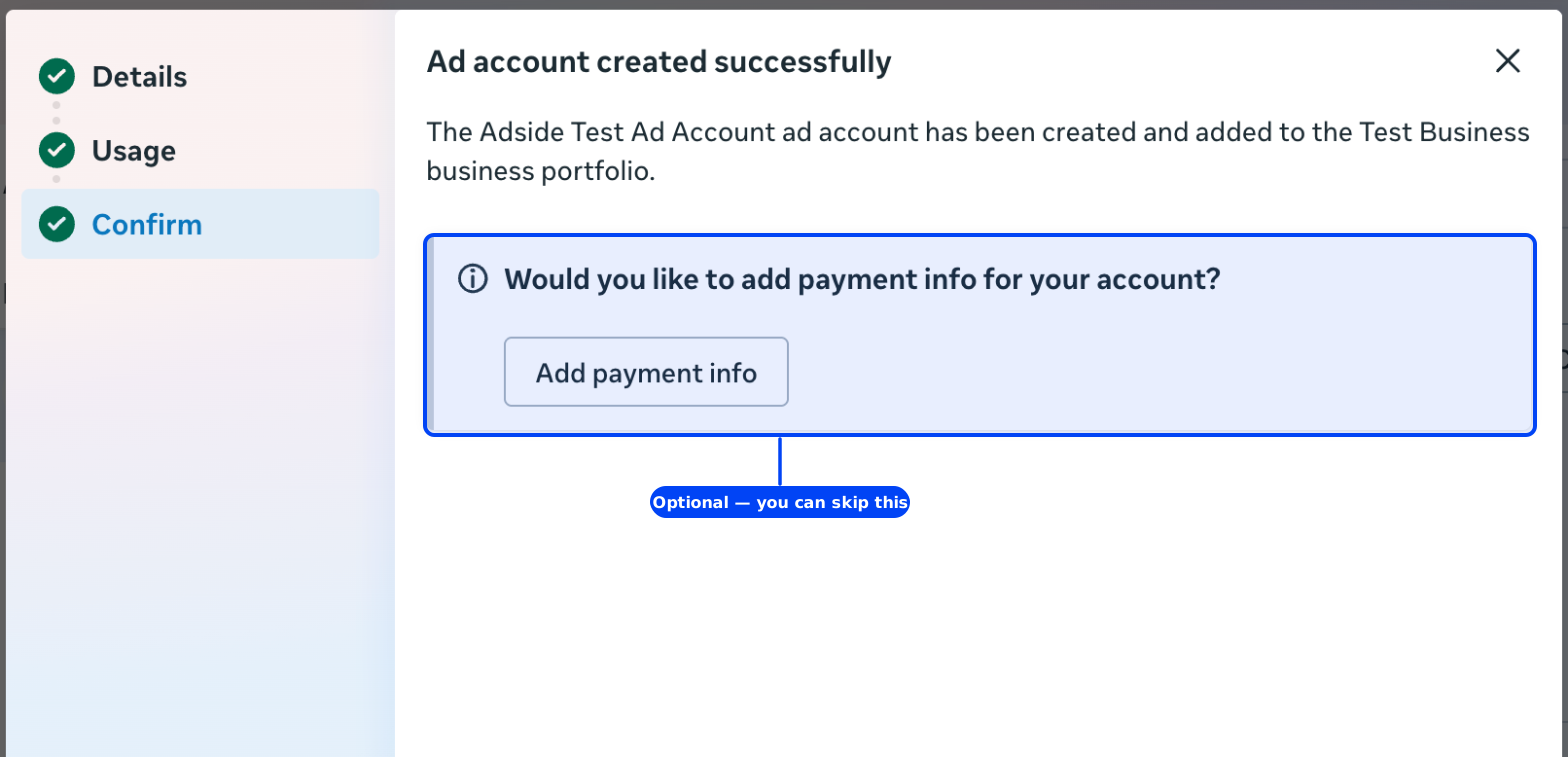
"Would you like to add payment info for your account?" is an offer with a Done button beside it. Click Done. You can add a card whenever you actually intend to spend, and there is nothing to gain by doing it now.
What that leaves you with is worth being precise about, because the three platforms differ and it matters if you are handing the account to someone:
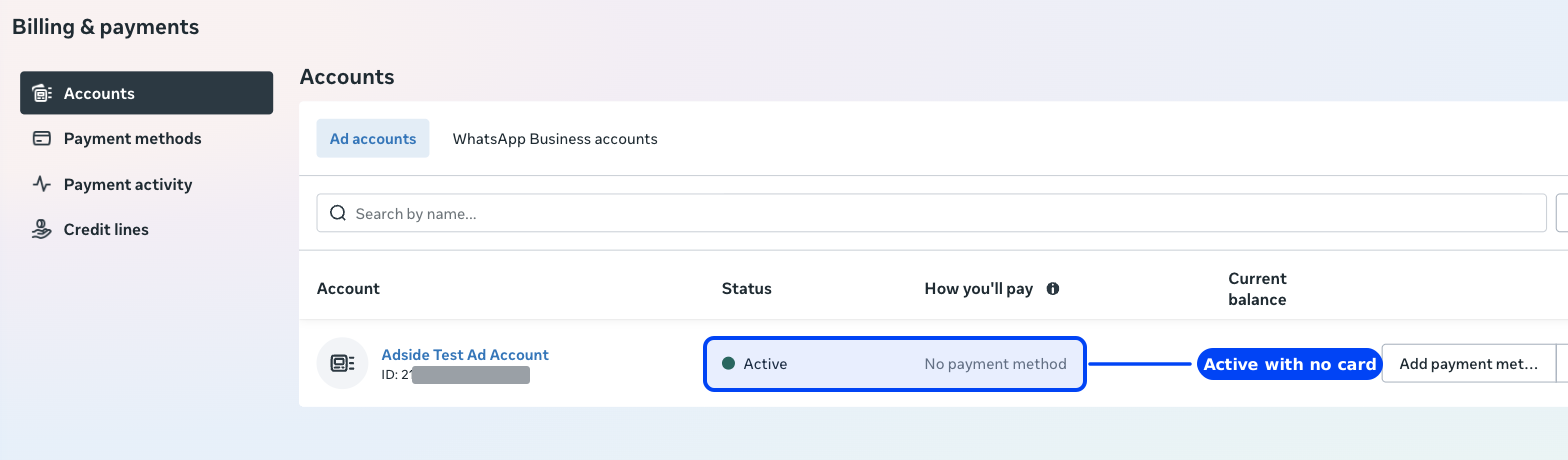
Meta calls the account Active. Not pending, not on hold — Active, with "No payment method" beside it and a balance of zero. Ads Manager opens on a normal, empty campaigns table. Billing gates delivery, and nothing else: not the account's existence, not its status, not your access to it. (For comparison: Google blocks the account until billing is complete, and LinkedIn creates it but parks it "On hold".)
One detail to fix while you are on this screen. The billing country defaults to United States of America even when you have chosen euros and a European time zone, and that is the address that appears on your Meta invoice. Unlike currency and time zone, it is genuinely editable — same modal, top field. Fix it now.
Step 7: Find your account ID
The ad account ID is what every tool, integration and agency will ask you for. It is on the account panel, directly under the name, and repeated in the Ads Manager header:
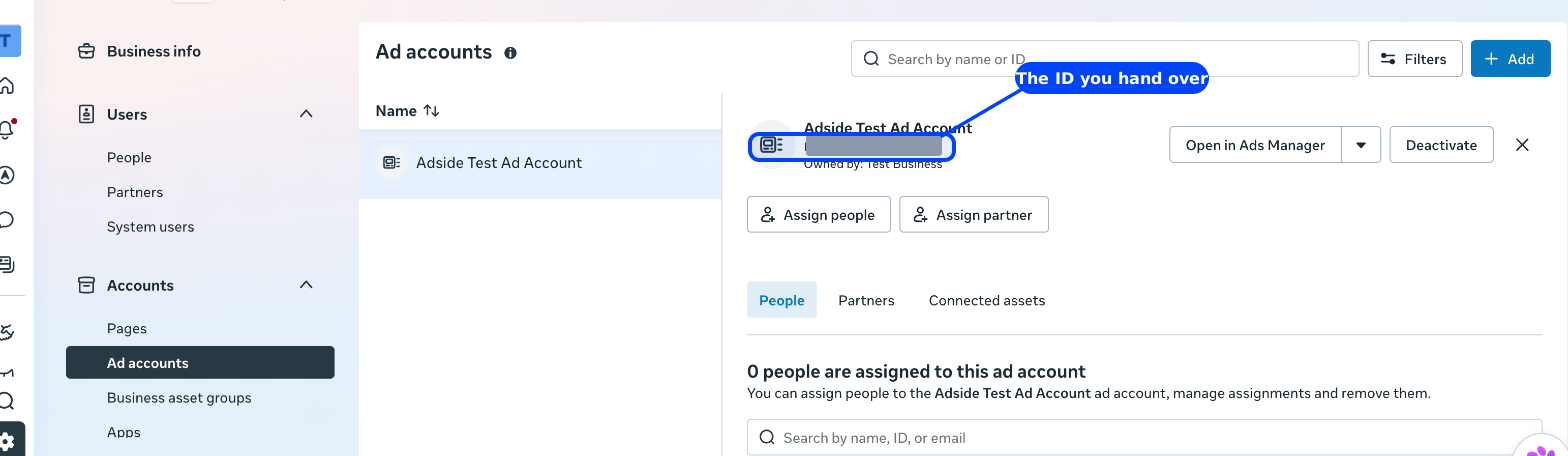
There is a trap here worth thirty seconds. After creation your browser's address bar contains a different, longer number after selected_asset_id. That is an internal asset identifier, and it is not what anyone is asking for. Take the number displayed under the account name — the same one Ads Manager shows in brackets beside the account name at the top of the campaigns table.
You may also notice, on that same panel, that your brand-new account reports "0 people are assigned to this ad account". This is normal and it has not locked you out: full control of the portfolio carries through to everything inside it, which is why Ads Manager opens fine. It means the account's own access list starts empty, which matters for the next part.
Handing the account to an agency or a freelancer
Use Assign partner on that panel if they have their own business portfolio — which any established agency will. You give them your portfolio or account ID, they connect, and you can revoke it in one click without touching anything else. Assign people is for individuals inside your own portfolio.
If they ask you instead to move the ad account into their portfolio, decline. That is the "Add an existing ad account" path from step 2, it is permanent, and it means your ad account now lives inside a business you do not control. The right option is the third one in that dialog, the one Meta labels for agencies: they request access, and the account stays yours.
Nobody should ever need your Facebook password. Meta's entire access model exists so that a partner can run your account without holding your login, and a person who asks for the password instead is telling you how they handle everyone else's.
What the other guides get wrong
Three things, consistently:
They list two fields where there are three. "Enter your new ad account details, such as name and timezone" is the standard line, reproduced almost verbatim across the category. Currency is the third field, it sits directly beneath the other two, and it is the one with the most expensive consequence. A reader who has been told to expect two fields fills in two fields.
They say the currency can't be changed, full stop. That is nearly right and unhelpfully incomplete. Meta does provide a control, it looks like an ordinary settings dropdown, and using it closes your account and strands its history. "Can't be changed" leaves a reader unprepared for a screen that plainly invites them to change it — which is the moment the damage actually happens.
They explain the one-account cap as a payment gate. The usual phrasing is that a new portfolio gets one ad account, rising to three "after you start running ads and make a payment". Meta's own tooltip on the disabled option says the cap lifts "after several weeks of following our policies". That difference is the whole practical question — whether a mistake on day one can be fixed with a credit card, or only with patience.
FAQ
Can I change the currency or time zone later?
Not in the sense you mean. Meta offers a currency and time zone control in the account's billing settings, but saving a change there closes the ad account and creates a new one. The closed account cannot be reactivated, its campaign history stays behind and cannot be merged into the replacement, and the change can only be requested once every 60 days and only with no outstanding balance. Treat both as permanent at creation.
Can I delete an ad account, or move it to another portfolio?
No. Meta says so twice during creation: the Add dialog is subtitled "Ad accounts can't be removed from a business portfolio once they're added", and the confirmation step repeats it with an amber warning. The only control you get afterwards is Deactivate. Choose the portfolio before you create the account, not after.
Why can't I create a second ad account?
A new business portfolio can create exactly one. Hovering the greyed-out option gives Meta's reason: "You've reached the maximum number of ad accounts allowed for a new business portfolio. You'll be able to create or add more ad accounts after several weeks of following our policies." Note what that is gated on — time and standing, not spend. Adding a payment method does not lift it.
Do I need a credit card to create the account?
No. The wizard offers payment details at the end and puts a Done button beside the offer. Decline it and the account still appears in Billing & payments as Active, with "No payment method" and a zero balance, and Ads Manager opens normally. A payment method is needed before anything is delivered, not before the account can exist.
Does Meta force you to create a campaign?
No — and it is the only one of the three big platforms that doesn't. Creation ends on a plain confirmation panel, and opening the account in Ads Manager afterwards gives an empty campaigns table with no interstitial and nothing to escape from.
Which number is my ad account ID?
The one shown on the account panel under the account name, repeated in the Ads Manager header beside the account name. Your address bar also carries a longer identifier after selected_asset_id — that is an internal asset id, and it is not what a tool or an agency is asking for.
Sources
- Meta Business Help Centre, Add an ad account to your business portfolio in Meta Business Suite.
- Meta Business Help Centre, Create a business portfolio in Meta Business Suite.
- Meta Business Help Centre, Change the currency you use for Meta ads.
- Meta Business Help Centre, About business portfolios.
- Account creation walked end to end in Meta Business Suite, 1 September 2026, on an empty business portfolio. All screenshots from that run.
Setting up the same account on the other platforms? We walked Google Ads, LinkedIn and Google Tag Manager the same way — and all four differ on every point that matters.