How to create a Google Ads account
Six minutes, screen by screen, as the signup actually works in 2026. Including the three settings you can never change afterwards, the step that quietly blocks everything until it is done, and how to finish without building a campaign you did not want.
You want a Google Ads account. Not a campaign, not keywords, not an ad — just the account, so that it exists and you can decide what to do with it later. Maybe you are getting set up before you are ready to spend, maybe someone else will run it, maybe you just want to look around inside.
It takes about six minutes. The problem is that Google does not offer "create an empty account" as a visible option. The signup flow is literally called Create your first campaign, and it is built for someone who wants a search ad live today. If that is not you, most of what it asks is noise — and answering it badly leaves settings on the account that can never be changed.
Rather hand this to an agent?
Copy a ready-made prompt for Claude, ChatGPT, Codex or Cursor. It checks whether your agent can drive your browser, interviews you on the settings that can't be undone, then does the rest with you.
You are helping me create a Google Ads account. I have not started yet.

STEP 0 — decide how you'll help.
Check whether you have a browser or computer-use tool available — something that
can drive my own signed-in Chrome, such as the Claude in Chrome or Codex for
Chrome extension.
- If you have one: say so and offer to drive. Navigate for me, fill the fields
  I've confirmed, and read each screen back before we move on.
- If you don't have one: tell me exactly what I'd need to enable in the client
  I'm using to give you one, and ask whether I want to set that up before we
  continue. Don't assume I know.
- If I decline, or it isn't available: just talk me through it, one screen at a
  time.

Whichever way we do it, two things are mine and never yours: I click the final
Create button, and I accept the platform's terms. Never ask me for my password.

STEP 1 — interview me before anything is opened.
Ask me these and wait for my answers. Three of the answers can never be changed once the account exists.
1. What is the business name?
2. What is the website URL? (Required, unless I'm advertising a phone number or an app.)
3. Which country does the business bill from?
4. Which time zone should reporting use?
5. Which currency should the account use?

STEP 2 — then walk me through it.

Facts you must not get wrong:

- BILLING COUNTRY, TIME ZONE AND CURRENCY ARE ALL PERMANENT. Three settings, not one. Confirm all three back to me before I move past that screen.
- Google will push me to build a campaign. Ignore the big goal buttons and find the small grey line at the bottom of that step: "Not ready for a campaign? Set up an account only." Almost no guide mentions it, and without it I end up building a campaign I didn't want.
- The website URL is mandatory on the normal path. If I don't have one, switch to the phone or app option rather than inventing a URL.
- A payment method does not start any spend, but without one the account cannot be shared with anyone — so if an agency or a tool needs access, this step isn't optional.
- My customer ID is top right. That is the account's identity and the only thing anyone needs in order to request access. Never my password.

Start with STEP 0, then ask me the questions.
The short version
- Go to ads.google.com and click Start now, then New Google Ads Account.
- Give a business name and a website URL. The URL is mandatory unless you switch to the phone or app option.
- On the goal step, ignore the big buttons. Click the grey line at the bottom: "Not ready for a campaign? Set up an account only."
- Set billing country, time zone and currency with care — these three can never be changed.
- Add a payment method. It does not start any spend, but without it the account cannot be shared with anyone.
- Your customer ID sits top right. It is the account's identity, and the only thing anyone needs in order to request access. Never your password.
Why this is harder than it should be
Google's own help page describes signup as three steps: add business information, select campaign goals and budget, enter payment details. It notes, in one sentence, that "you can skip all recommendations to create a campaign" — without saying how.
Meanwhile every third-party guide currently ranking for this — including the one published by the best-known access-management tool — tells you to click Switch to Expert Mode. That link no longer appears during signup. Google renamed it. The mode still exists internally (the step it leads to still carries currentStep=expert in the URL), but the words "Expert Mode" are nowhere on the screen, which is why Google's support forums are full of people asking where the switch went.
Everything below was walked end to end on a brand-new Google account in August 2026, and every screenshot is from that run.
Before you start
Four things, and each one matters later in a way the signup does not warn you about:
| What you need | Why it matters |
|---|---|
| A Google account | The ads account belongs to whichever Google account creates it. Use the one that should own it — moving ownership later is a nuisance. |
| Your business name | It becomes the account name, and it is what everyone sees in account lists from then on. Use the real trading name. |
| A website URL | Required on the first screen — you cannot continue without one. A phone number or an app page are the only alternatives. |
| A payment method | The account is not usable until billing is submitted (step 6). This is the step that surprises people. |
You do not need a single decision about campaigns, keywords, budgets or ad copy.
The signup will ask for all four of those anyway. Everything you set there is work someone has to unpick later, so the aim is to give Google the minimum it will accept and stop.
Step 1: Open the account
Go to ads.google.com and click Start now. Sign in with the Google account that should own the ads account — this matters, because ownership follows the Google account you are signed in as, and it is a nuisance to move later.
If that Google account has never advertised, you get a small dialog with two options.
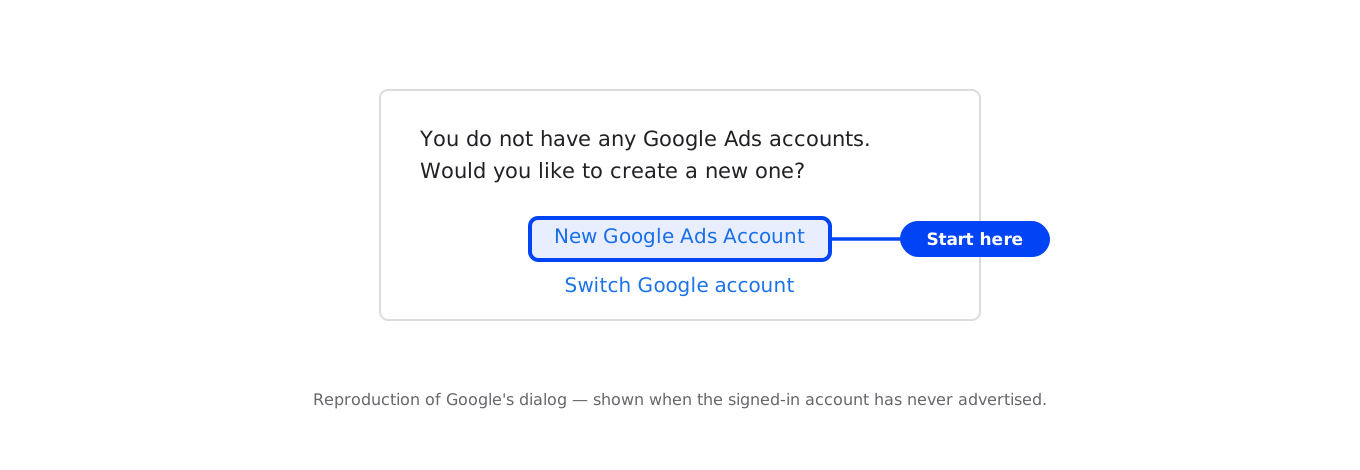
The moment you click it, Google assigns the account a customer ID — you can see it appear in the top right corner and in the browser tab. Nothing has been created in any meaningful sense yet, but the number is real, and it is the number you will need to grant anyone else access.
Step 2: Business name and website
The first screen asks for your business name and where people should go after clicking your ad.
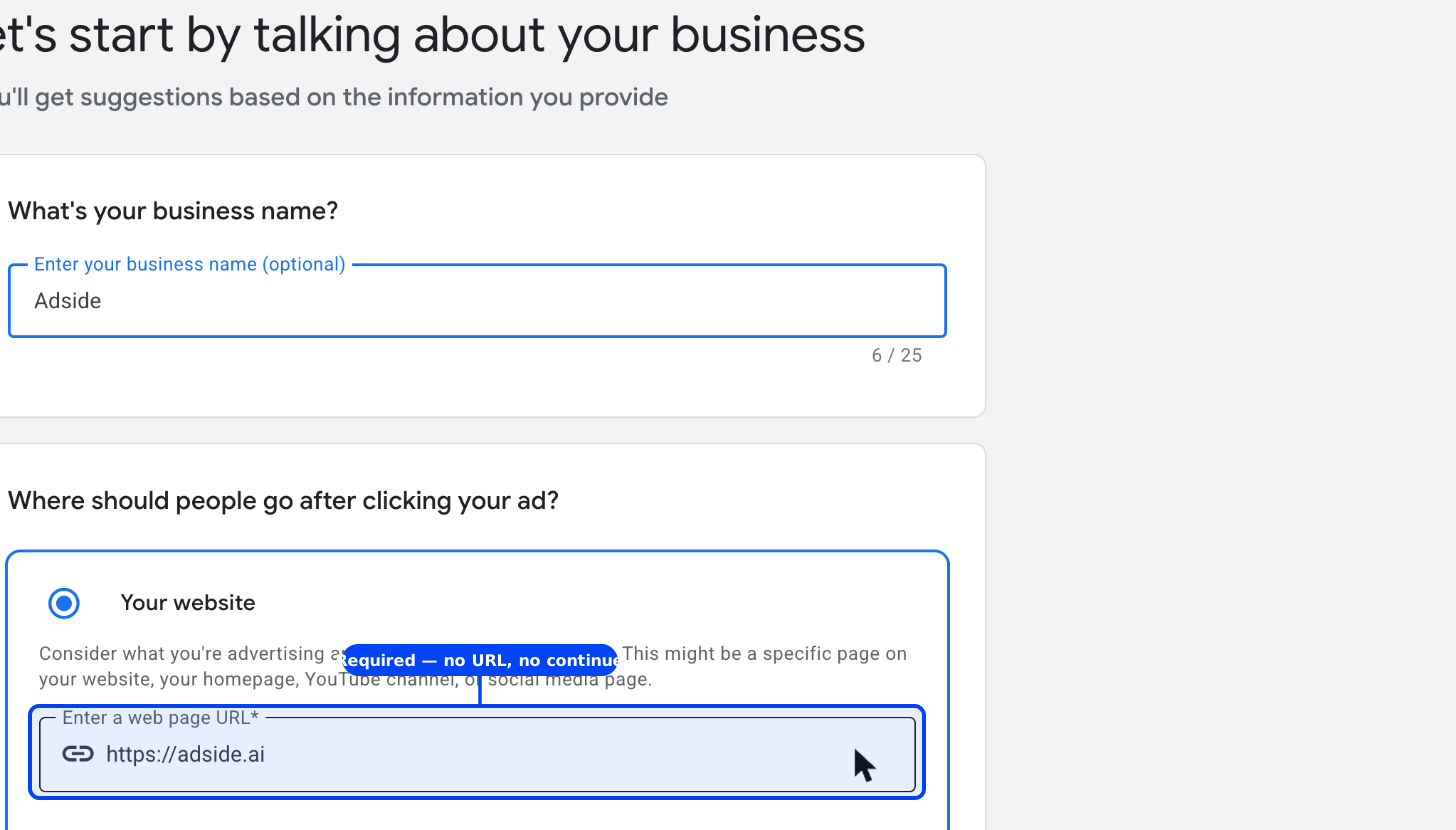
The business name is optional and becomes the account name — use the client's real trading name, because this is what everyone will see in account lists forever after. The URL is required: leave it empty and you get "Enter a valid website URL". If the business genuinely has no website, switch to Your business phone number or Your app download page on the same screen.
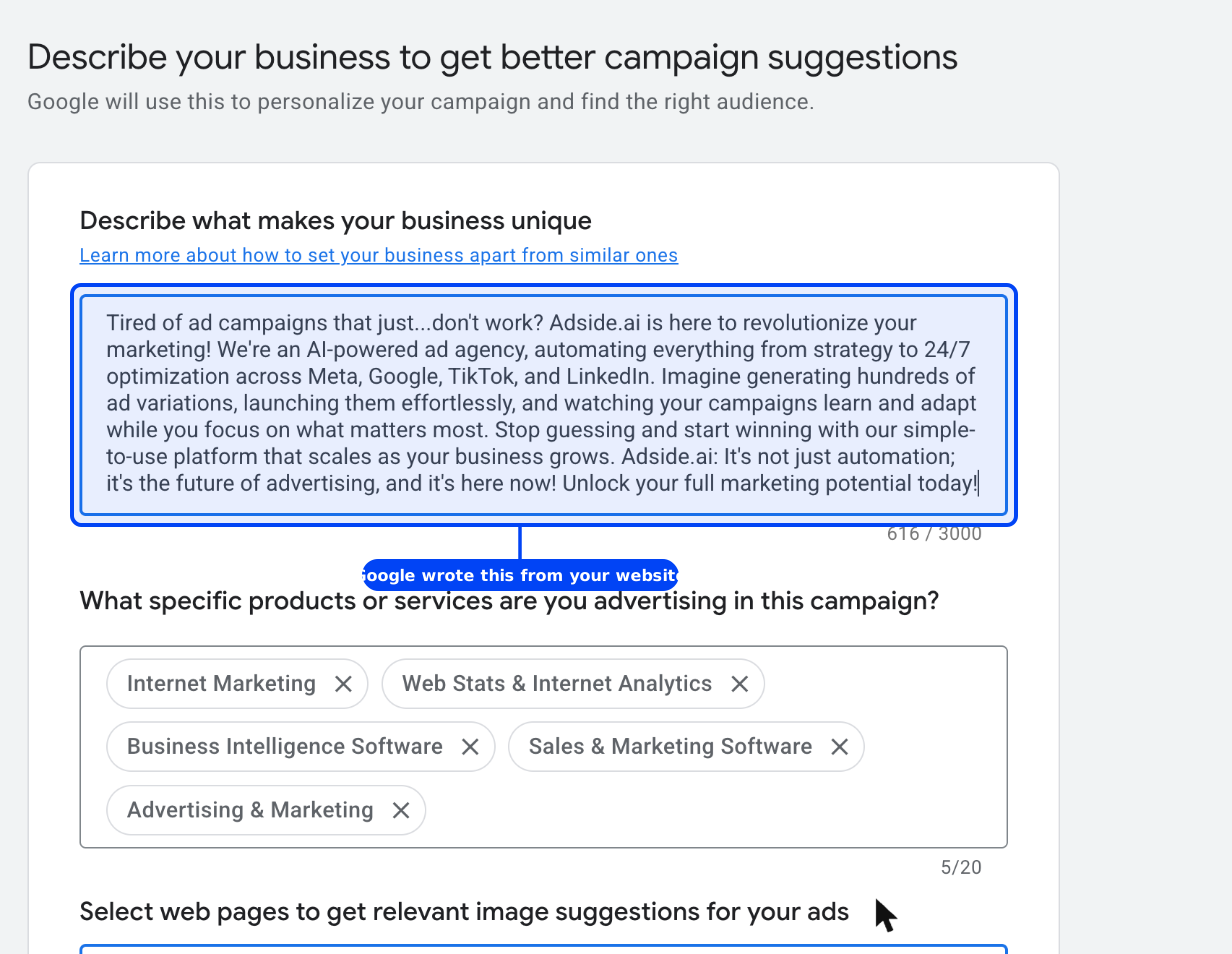
Give Google a URL and it will crawl the page immediately, then show you a description of your business and a set of category tags it wrote itself.
Step 3: Skip the linking step
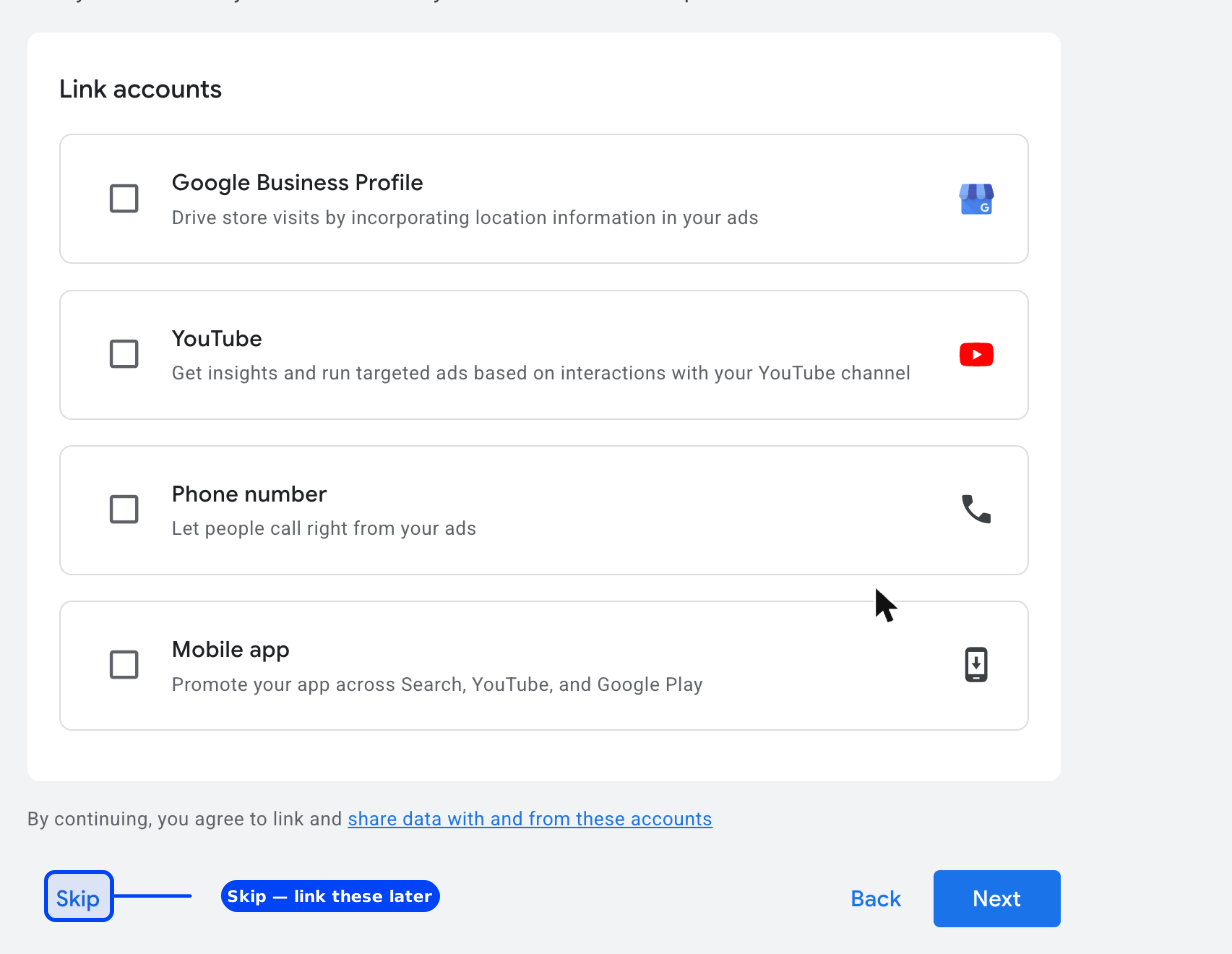
Next Google offers to link a Google Business Profile, a YouTube channel, a phone number and a mobile app. Click Skip.
This is not a permanent decision — linking can be done at any time afterwards, and those choices are better made deliberately later than attached during signup.
Step 4: The link almost nobody finds
Now Google asks you to choose a goal for your campaign: purchases, lead form, phone calls, page views, brand awareness. There is a Skip button, which does not do what you want — it skips the goal, not the campaign, and drops you into the ad builder anyway.
What you want is a line of small grey text at the very bottom of the page, below everything else:

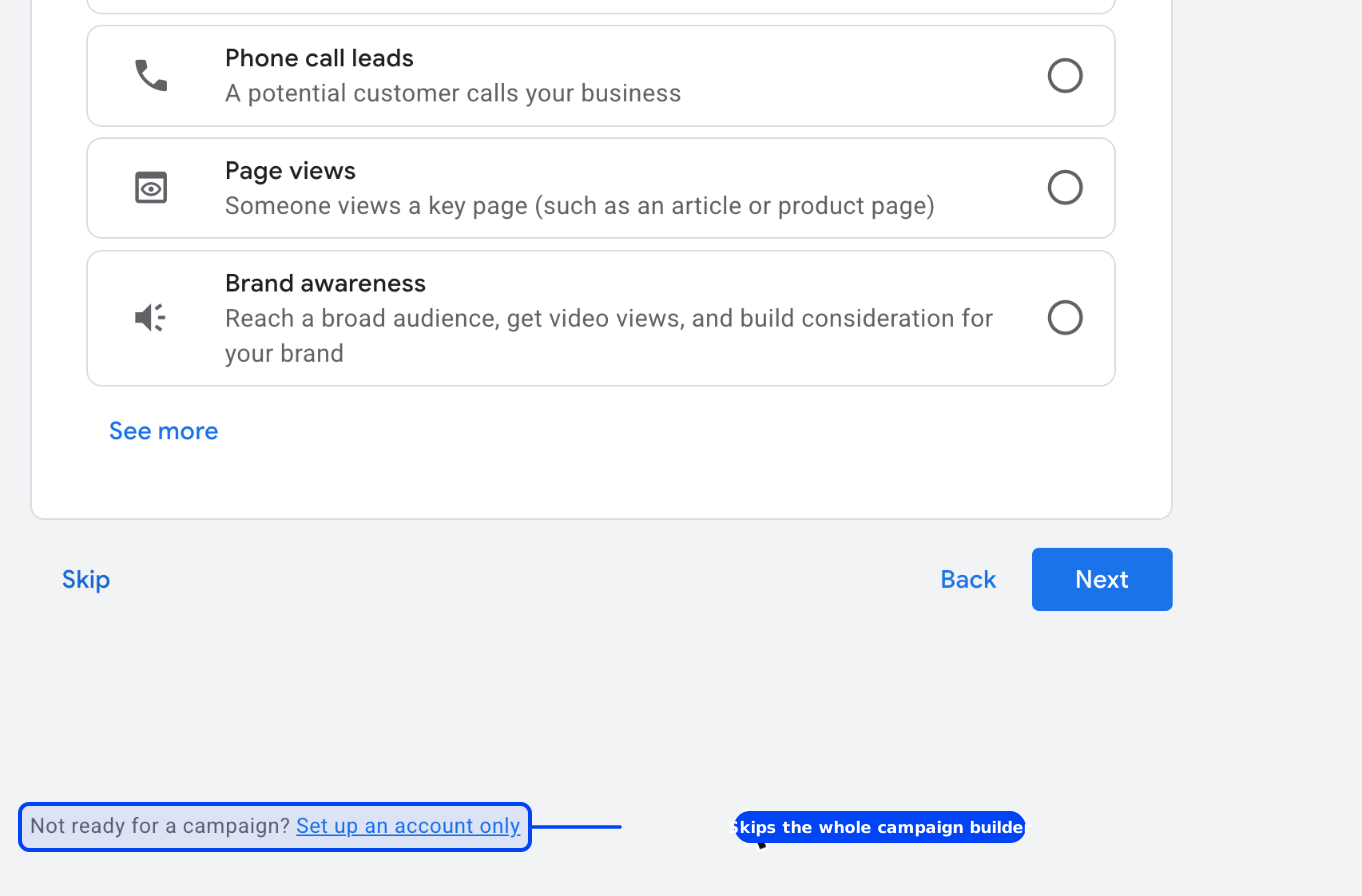
Click Set up an account only and the campaign builder is gone.
Step 5: The three settings you cannot undo
This is the most important screen in the entire process, and Google gives it less ceremony than the choice of ad headline.
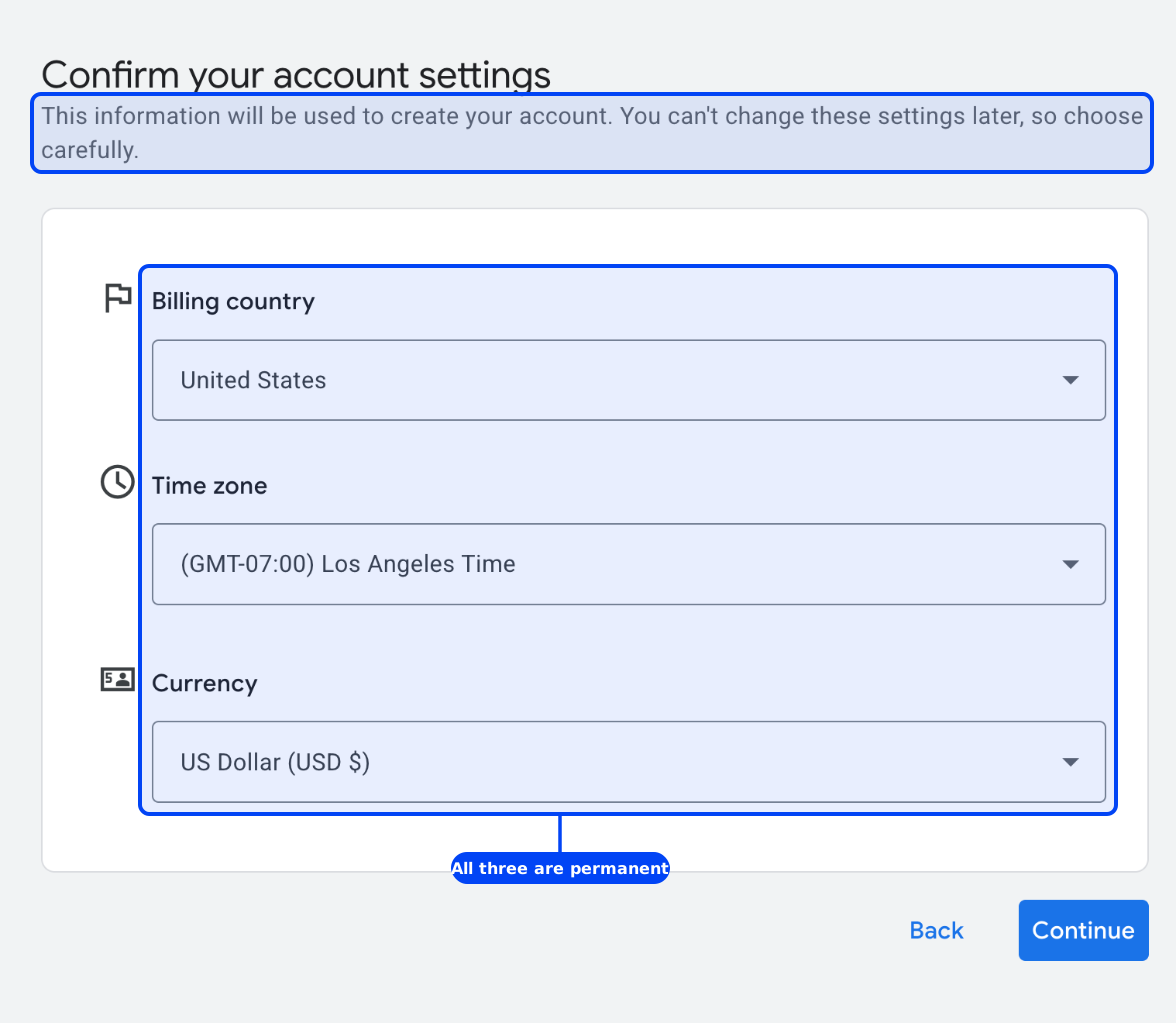
Three fields, all permanent:
- Billing country — determines which payment methods you can use.
- Time zone — every report and every billing period is bucketed by this. Set it to the business's operating time zone, not yours if you happen to be elsewhere.
- Currency — all spend is denominated in it, forever. If you report in euros and the account is in dollars, every number carries an exchange rate.
If one of these is wrong, there is no settings page that fixes it. The fix is a new account.
Google defaults to the country it infers from your connection, which is not necessarily the country the business bills from. Read all three before continuing.
Step 6: Billing is not optional
The last screen asks for a payments profile. It is tempting to close the tab here — the account exists, it has an ID, surely that is enough to hand over?
It is not. We checked: with signup left incomplete, opening the account's own user-access page redirects straight back to this payment step. The page where you grant anyone access is not reachable until billing is done. An account without a payment method is not a half-finished account you can pass along; it is an account nobody else can be let into.
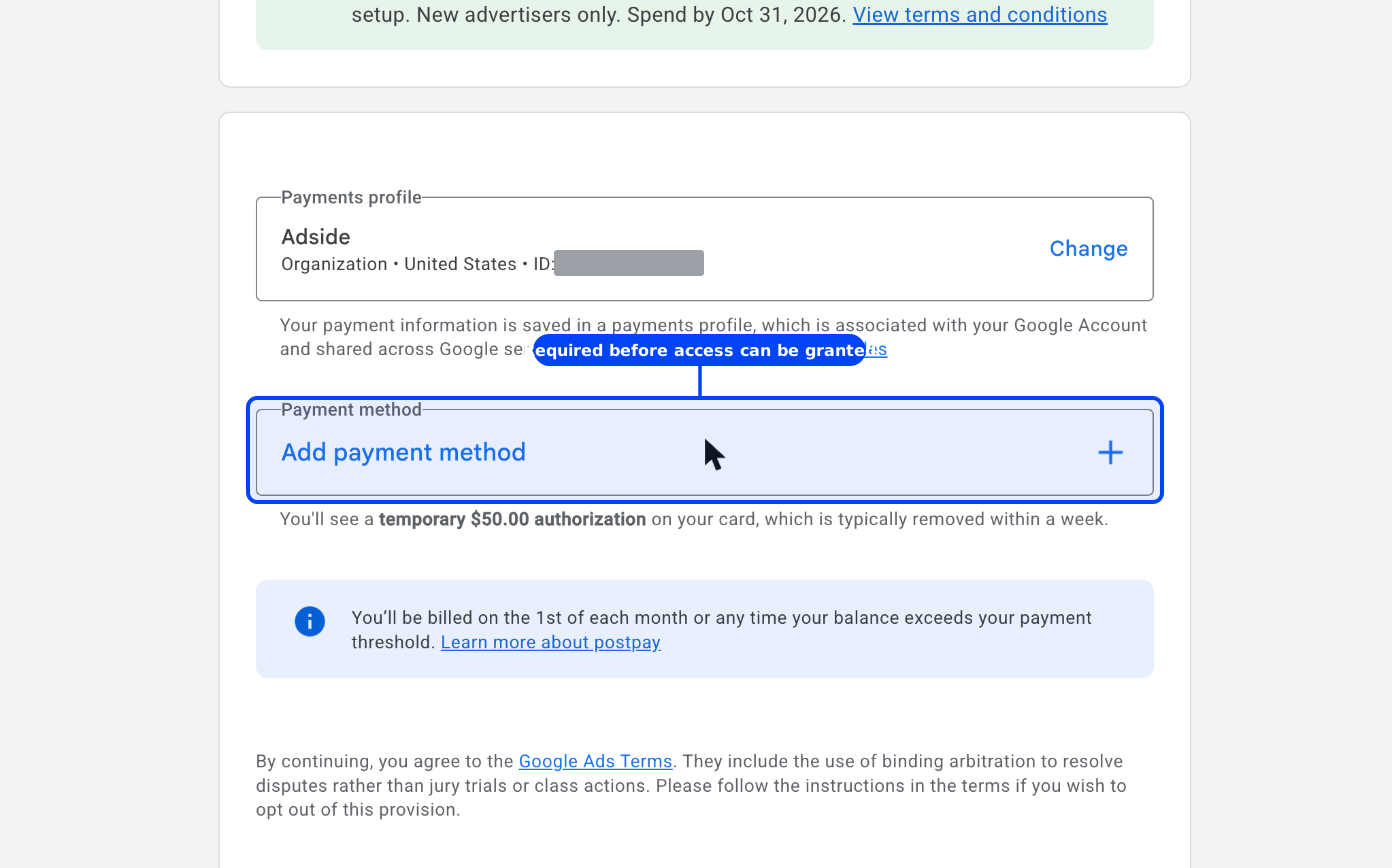
Two things on this screen deserve a look before you submit:
The promotion. Google offers a spend-matching credit to new advertisers — at the time of writing, spend $500 and get $500 in credits, applied after billing setup, for new advertisers only and with a deadline. If the business is going to spend anyway, take it; the offer is attached at signup and is awkward to claim afterwards.
The strategist opt-in. Google asks whether you want "personalized guidance from a Google Ads account strategist by phone or messaging app". If you know what you are doing, or someone else is running the account, answer No. Saying yes routes a Google sales representative to the account, and their recommendations — broad match, maximised budgets, automated campaign types — routinely conflict with whatever plan you or your marketing partner already have.
Step 7: Find your customer ID
Once billing is submitted the account is finished: live, and completely empty. Nothing is running and nothing is spending — Google cannot charge you for a campaign that does not exist.
The last thing to note is the customer ID in the top right, formatted 123-456-7890. It is the account's identity, and you will be asked for it more often than you expect — by Google support, when you link Analytics or Search Console, and by anyone who needs access.
From here you can build a campaign whenever you are ready, or leave the account sitting empty indefinitely. An empty account costs nothing.
If someone else is going to run it
Send them the customer ID and nothing else. They send an access request against that number, you approve it from inside the account, and they are in with their own login.
Do not send your Google password, and be wary of anyone who asks for it. Google's access model exists precisely so that someone can run an account without ever holding your login — and anyone who asks for the password instead is telling you something about how they handle everyone else's.
What the other guides get wrong
Three things, consistently:
They tell you to look for "Switch to Expert Mode." It is not on the screen any more. The concept survives — the URL still says expert — but a reader following those instructions will scan the goal step, fail to find the words, and conclude they have to build a campaign after all. This is the single most common reason people end up with a junk campaign attached to a brand-new account.
They walk you through the campaign. Thirteen steps of keywords, headlines, bids and budgets, in a guide whose reader mostly wanted an account. If someone else is running the account, every one of those steps is work you will pay for twice: once to do it, once for whoever runs the account to undo it.
They imply the account is usable once it exists. The customer ID appears within seconds, which makes it feel finished. It is not finished until billing is on it, and the specific failure — the access page bouncing you back to payment — is the kind of thing that costs a day of confused email.
Not every platform works this way. On LinkedIn the account is genuinely created without billing — it just sits on hold and cannot serve. Google is the stricter of the two.
FAQ
Can I create a Google Ads account without creating a campaign?
Yes. On the "Choose your goal for this campaign" step there is a line of small grey text at the bottom of the page: "Not ready for a campaign? Set up an account only." That link skips the entire campaign builder — no keywords, no ad copy, no budget — and takes you straight to account settings. It is easy to miss because it sits below the Skip and Next buttons in a lighter colour than everything around it.
Where is Switch to Expert Mode?
It is no longer shown by that name during signup. Google replaced the visible link with "Set up an account only" on the campaign goal step. The mode still exists underneath — the URL of the step it leads to still reads currentStep=expert — but if you are searching the page for the words "Expert Mode" you will not find them.
Do I need a credit card to create the account?
To finish creating it, yes. Google assigns a customer ID early, but the account is not operable until billing is submitted — with signup incomplete, the account's own user-access page redirects back to the payment step. So an account without billing cannot be shared with anyone else. Adding a payment method does not start any spend on its own.
Can I change the currency or time zone later?
No. Billing country, time zone and currency are set once during signup and cannot be changed afterwards. The time zone determines how every report and billing period is bucketed; the currency is what all spend is denominated in. If either is wrong, the only real fix is a second account.
Do I need a website?
The first step demands one and will not continue without a valid URL, but there are two alternatives on the same screen — your business phone number, or your app download page. If you do give a URL, Google crawls it immediately and pre-fills a business description and category tags from what it finds.
What does someone need in order to run the account for me?
The ten-digit customer ID at the top right of the account, in the form 123-456-7890. That is all they need to send an access request. They do not need your password, and you should not share it.
Sources
- Google Ads Help, Create a Google Ads account: How to sign up.
- Google Ads Help, About Smart Mode and Expert Mode.
- Signup flow walked end to end on a new Google account, August 31, 2026. All screenshots from that run.
Setting up the same account elsewhere? We walked LinkedIn and Meta the same way — and the three differ on every point that matters, including which settings are permanent and whether billing blocks anything. Google Tag Manager is the odd one out: free, unbilled, and useless until a snippet ships.