How to create a LinkedIn ad account
The whole thing is one dialog with four fields, and it takes about two minutes. Two of those fields can never be changed afterwards. LinkedIn warns you about one of them.
You want a LinkedIn ad account. Not a campaign, not an audience, not an ad — just the account, so that it exists and you can decide what to do with it later. On LinkedIn that is genuinely quick: the entire thing is a single dialog with four fields, and you can be done in about two minutes.
Which is also the problem. Two of those four fields are permanent, and the dialog is over before you have thought about either. LinkedIn prints a warning under one of them. It says nothing at all under the other — and the other is the one people get wrong.
Rather hand this to an agent?
Copy a ready-made prompt for Claude, ChatGPT, Codex or Cursor. It checks whether your agent can drive your browser, interviews you on the settings that can't be undone, then does the rest with you.
You are helping me create a LinkedIn ad account. I have not started yet.

STEP 0 — decide how you'll help.
Check whether you have a browser or computer-use tool available — something that
can drive my own signed-in Chrome, such as the Claude in Chrome or Codex for
Chrome extension.
- If you have one: say so and offer to drive. Navigate for me, fill the fields
  I've confirmed, and read each screen back before we move on.
- If you don't have one: tell me exactly what I'd need to enable in the client
  I'm using to give you one, and ask whether I want to set that up before we
  continue. Don't assume I know.
- If I decline, or it isn't available: just talk me through it, one screen at a
  time.

Whichever way we do it, two things are mine and never yours: I click the final
Create button, and I accept the platform's terms. Never ask me for my password.

STEP 1 — interview me before anything is opened.
Ask me these and wait for my answers. Two of the answers are permanent, and LinkedIn only warns about one of them.
1. What should the account be called?
2. Which currency should it use?
3. Which LinkedIn Page will the ads run under — and am I an admin of that Page?
4. Do I want to build a campaign now, or just create the account?

STEP 2 — then walk me through it.

Facts you must not get wrong:

- CURRENCY IS PERMANENT. LinkedIn does warn about this, in grey text under the field.
- THE ASSOCIATED LINKEDIN PAGE IS ALSO PERMANENT — and LinkedIn warns about it nowhere on the screen. This is the one people get wrong. Confirm it with me explicitly.
- Do NOT type in the Page field. Clicking into it while it's empty lists only "Pages you're an admin of". Typing searches all of LinkedIn and surfaces look-alike companies and Showcase Pages, which is exactly how the wrong Page gets picked.
- The whole flow is a single dialog with four fields. There's no wizard and nothing to skip.
- After I save, LinkedIn drops me into a campaign builder. The way out is a grey line at the bottom left: "Not ready for a campaign? Create later." It then offers a call with an ads expert — decline with "No, thanks".
- The account exists immediately and gets its ID, but sits "On hold" until a payment method is added. Billing gates serving, not existing — so I can hand the account to someone else in that state.

Start with STEP 0, then ask me the questions.
The short version
- Go to Campaign Manager and click Create account. The whole flow is one dialog.
- Currency is permanent. LinkedIn tells you so, in grey text under the field.
- The associated LinkedIn Page is also permanent. LinkedIn does not tell you that anywhere on the screen.
- Do not type in the Page field. Click into it and pick from "Pages you're an admin of" — searching surfaces look-alike companies and Showcase Pages.
- After you save, LinkedIn drops you into a campaign builder. The way out is a grey line at the bottom left: "Not ready for a campaign? Create later."
- The account exists immediately and gets its ID, but it sits On hold until a payment method is added. Billing gates serving, not existing.
Why this is harder than it should be
LinkedIn's own documentation is, unusually, correct. The help page for creating an ad account states plainly that "the currency and LinkedIn Page can't be changed once the account is created," and the account-settings page repeats it. Nothing is hidden.
The gap is between that documentation and the interface. In the create dialog, the currency field carries a line of grey helper text — "Note that you cannot change currency later." The Page field, two inches below it, carries helper text about ad formats and admin rights, and no warning at all. A reader who trusts the interface to flag its own irreversible decisions will flag exactly one of the two.
The third-party guides do not close the gap either. Of the guides currently ranking for this, most mention the currency and not one mentions the Page. The best-known access-management tool, which has a guide for almost every platform, has no LinkedIn account-creation guide at all — its LinkedIn writing covers Business Manager and granting access, both of which assume the account already exists.
Everything below was walked end to end in Campaign Manager on 1 September 2026, and every screenshot is from that run.
Before you start
Four things, and each one matters later in a way the dialog does not warn you about:
| What you need | Why it matters |
|---|---|
| A personal LinkedIn profile | Ad accounts are created by people, not companies. Whoever creates it becomes its account manager and its billing admin. Use the profile that should hold those roles. |
| Admin rights on your LinkedIn Page | You can only advertise on behalf of a Page you administer. With admin rights, LinkedIn offers you your own Pages in a short list. Without them you are typing into a search box against every company on LinkedIn — which is where the wrong-Page mistake happens. |
| The currency, decided | Permanent, and everything the account ever spends is denominated in it. Changing your mind means a second account. |
| A payment method — but not yet | Not required to create the account. Required before it can serve anything (step 6). You can leave this until later without losing anything. |
You do not need a campaign, an audience, a budget, an Insight Tag, or a Business Manager.
Step 1: Open Campaign Manager
Go to linkedin.com/campaignmanager, or click For Business in the LinkedIn top bar and choose Advertise. Sign in with the profile that should own the account.
Click Create account. This is the entire flow — there is no multi-step wizard, no mode to switch into, and nothing to skip.
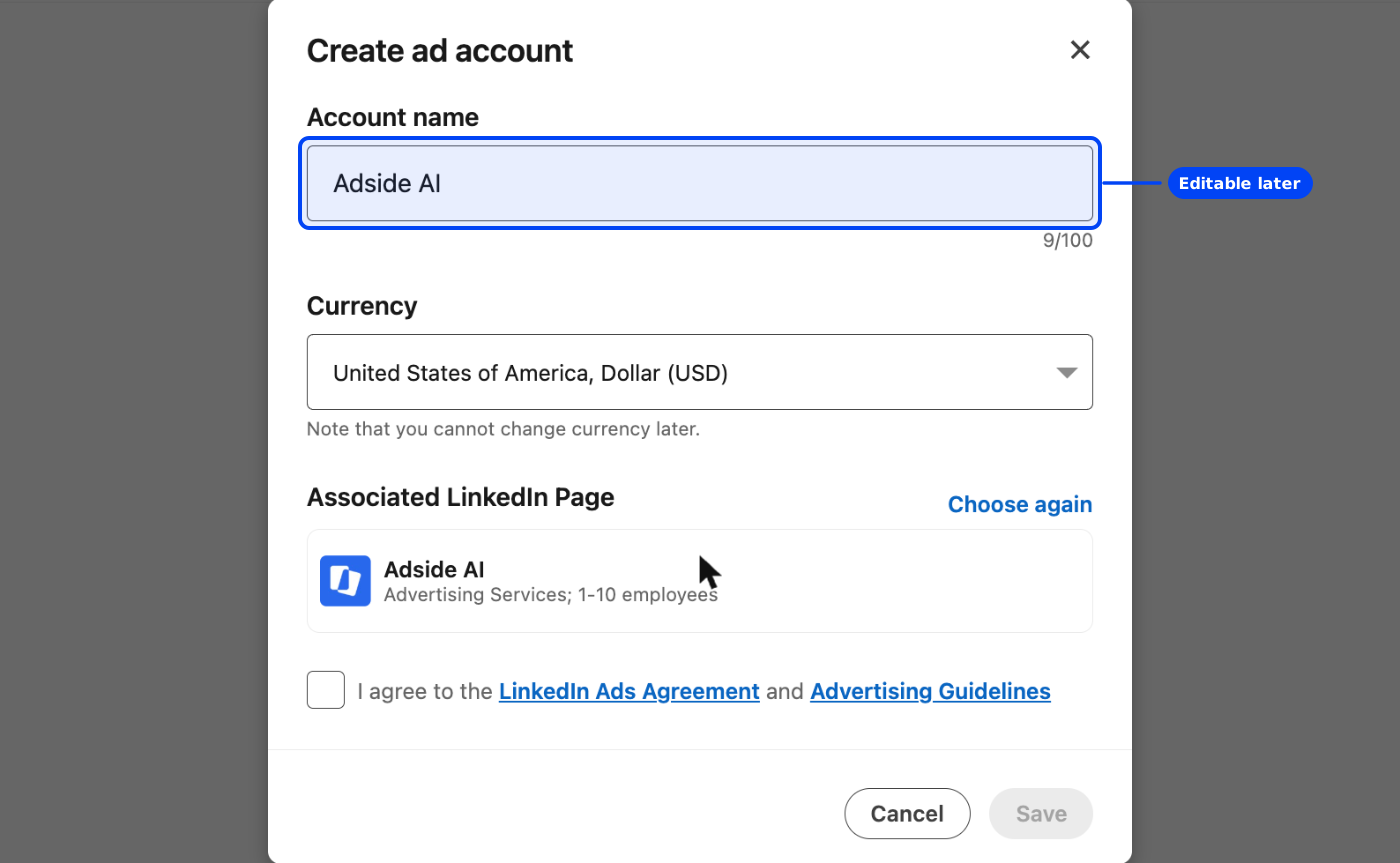
LinkedIn pre-fills the account name with your own first name — "Sam's Ad Account", "Priya's Ad Account". Replace it with the company name. This is the one field you can edit afterwards, so it is also the one worth least of your attention right now.
Step 2: The two settings you cannot change
Currency and Page are both permanent. Here they are, one above the other, with everything LinkedIn tells you about each:
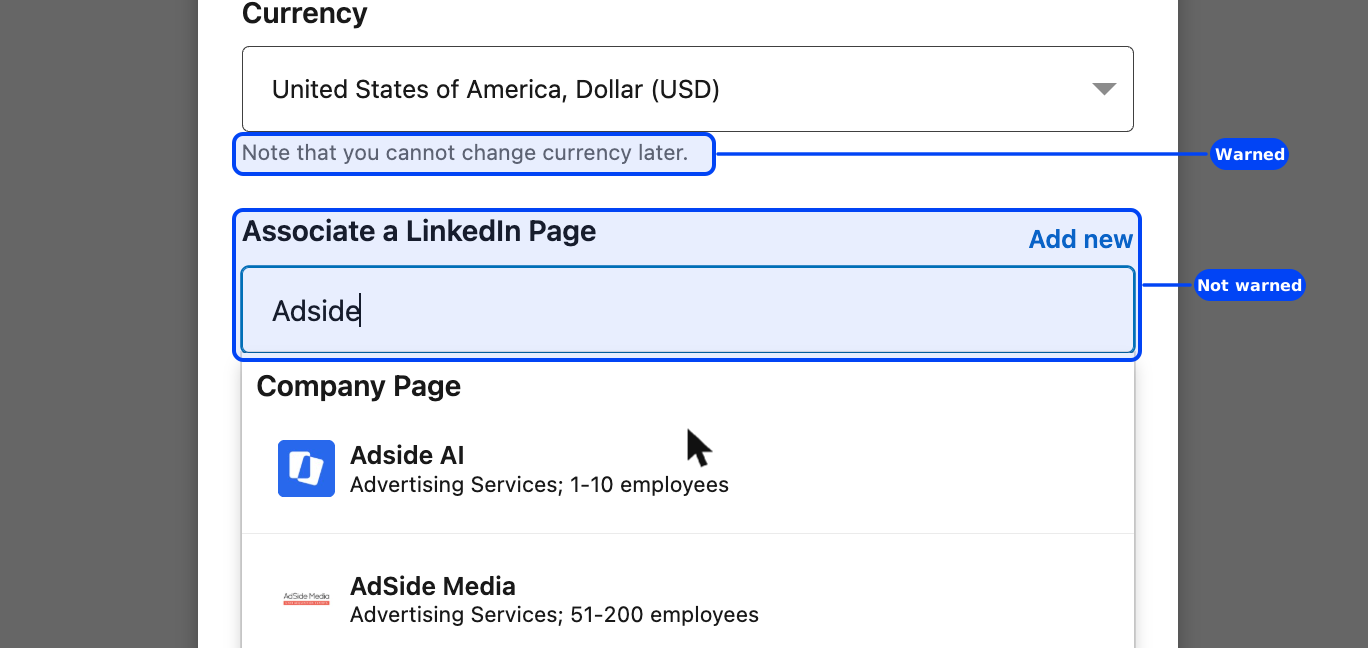
Currency. Thirty options, defaulted from your profile's location. It determines how every invoice, bid and report is denominated, and it cannot be changed. If your billing entity is in the eurozone, do not accept a defaulted USD because the dialog offered it.
The Page. Associating a Page is what unlocks the full set of ad formats — sponsored content has to be posted by somebody, and the Page is that somebody. The helper text explains this, and mentions that you must be a Page admin to advertise on the company's behalf. It does not mention that the association is one-way. Once saved, that ad account belongs to that Page for good; advertising for a different Page means creating a different account.
Step 3: Pick the Page from the list, not the search box
This is the part worth slowing down for, and it is easy to get right once you know the trick: click into the Page field and do not type.
An empty, focused field shows a heading — Pages you're an admin of — and beneath it the Pages you actually administer. That is a short list, it is scoped to your real permissions, and picking from it is almost impossible to get wrong.
Start typing and you are searching every company on LinkedIn instead. Here is what our own company name returns:
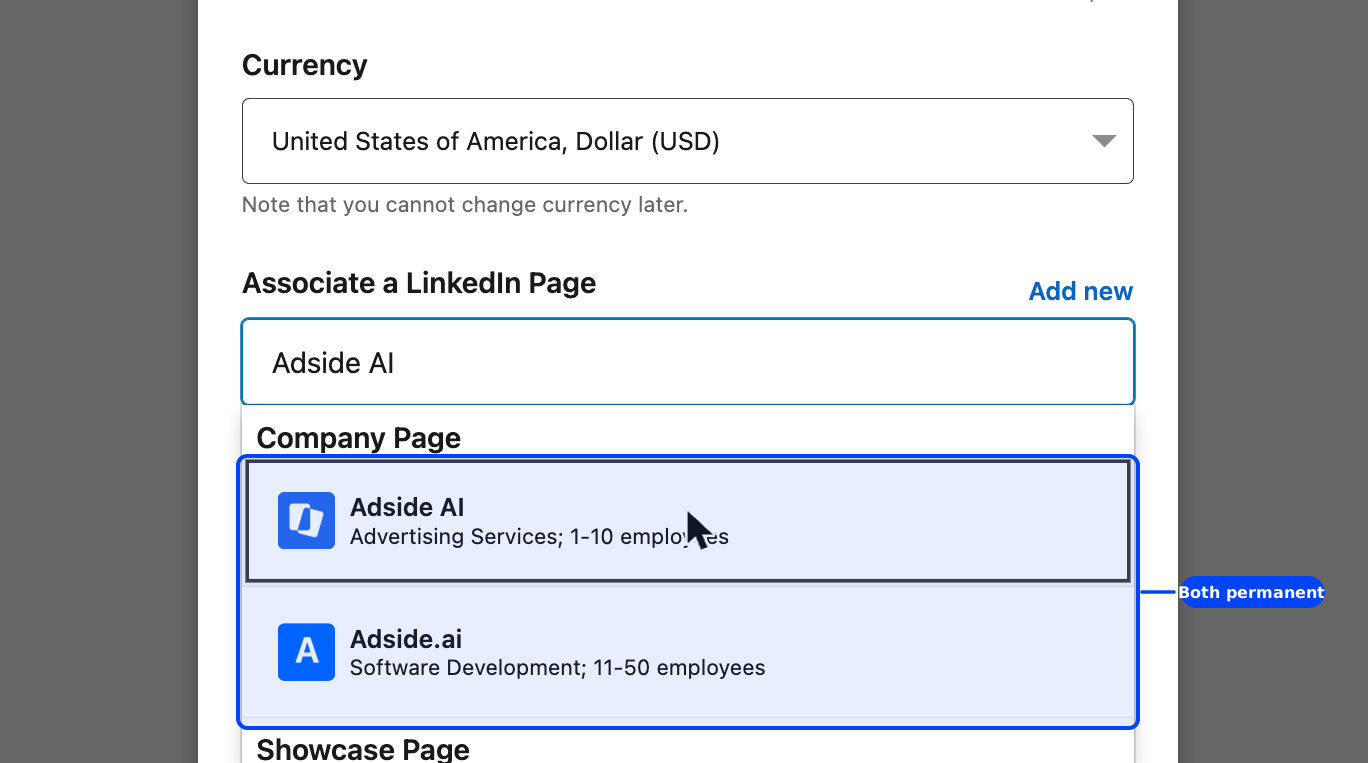
Two Company Pages one letter apart, distinguishable only by industry and headcount, plus a whole Showcase Page section underneath. Showcase Pages are sub-pages of a company, used for a product line or a region; they look like the real thing in this list and are a different object entirely. Shortening the search term to just "Adside" pulled in an unrelated company as well.
Any of those is a permanent choice. None of them carries a warning.
Step 4: Agree, save, and see what locks
Tick I agree to the LinkedIn Ads Agreement and Advertising Guidelines — the Save button stays disabled until you do — and click Save.
Up to that moment, the Page you chose sits in a card with a Choose again link next to it. That link is the last chance you get. Open the account's settings afterwards, at Account settings → Edit account, and this is what is there:
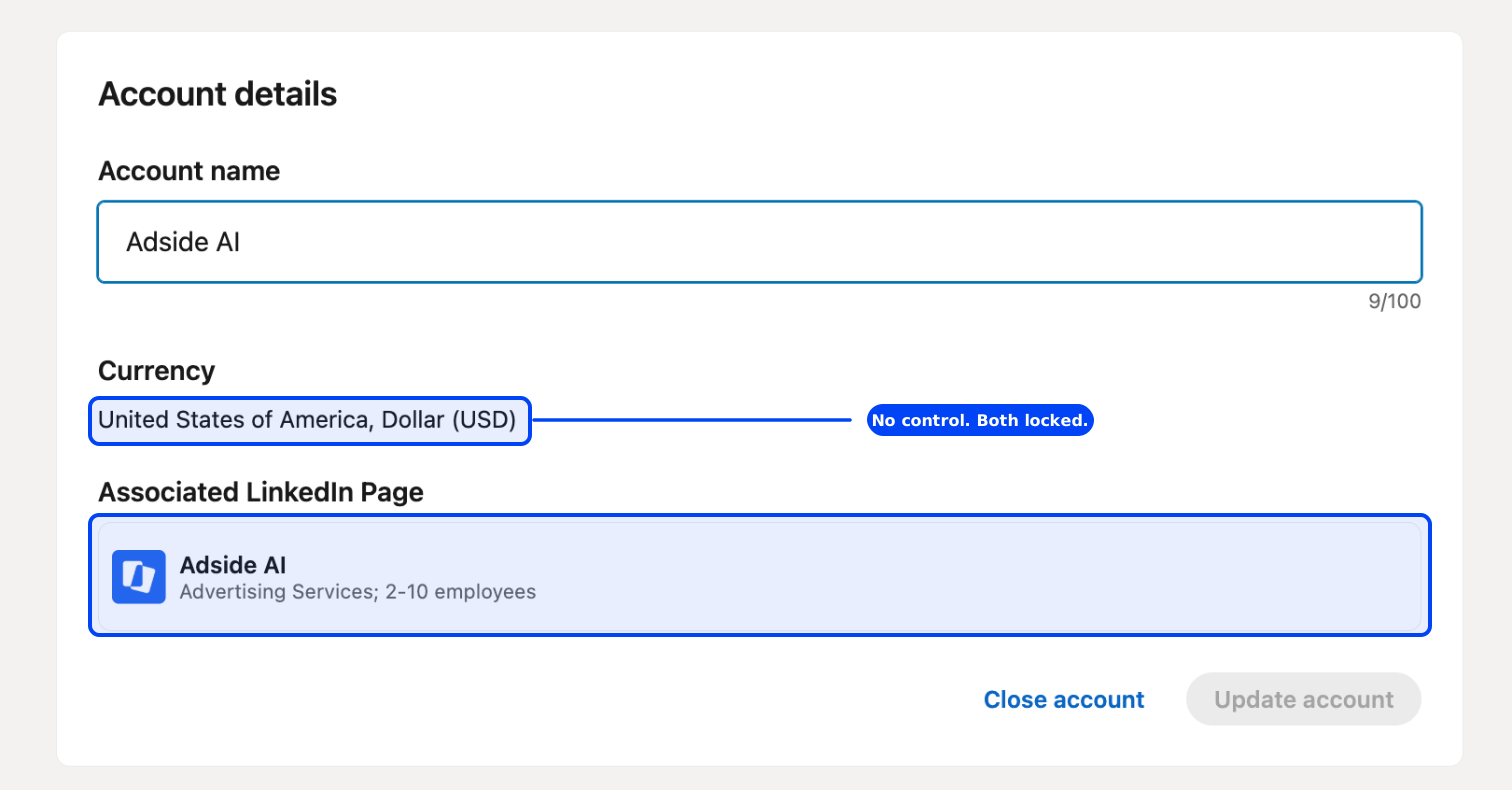
Account name is an editable field. Currency has become a line of text. The Page has become a card you cannot touch — no dropdown, no "Choose again", nothing. The buttons at the bottom are Close account and Update account: you can close the account, but you can never re-point it.
This is not something that hardens over time. The screenshot above was taken a few minutes after the account was created.
Step 5: Escape the campaign builder
Saving does not return you to your account list. LinkedIn sends you straight into building an ad set — the URL even carries isNewAdvertiser=true — with an objective already selected on your behalf.
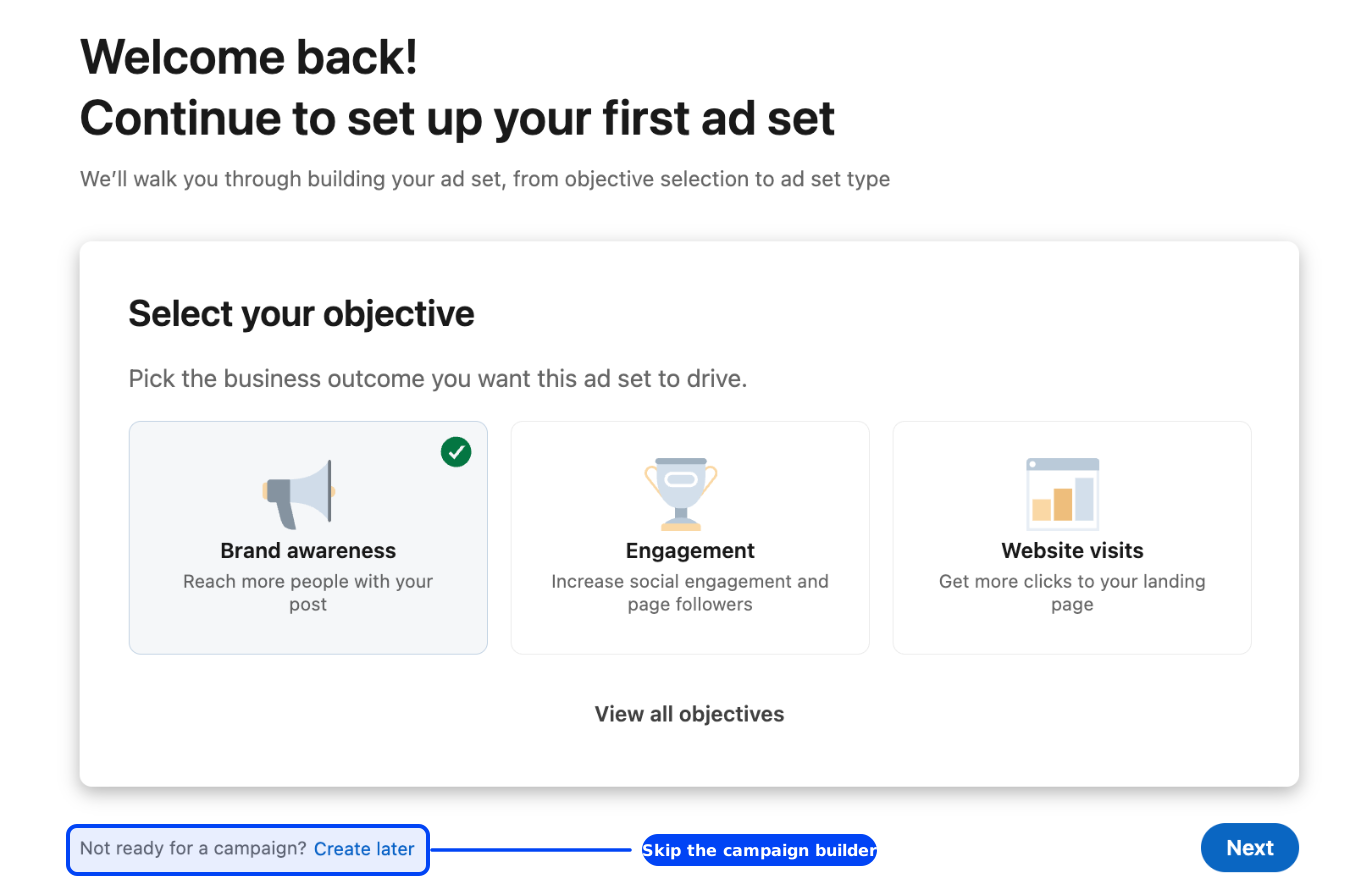
Ignore the objective cards. At the bottom left, in small grey type: "Not ready for a campaign? Create later." That is the exit. It sits diagonally opposite the prominent blue Next button, which is the layout's way of telling you which one it would prefer.
Clicking it does not immediately let you leave. One more dialog appears:
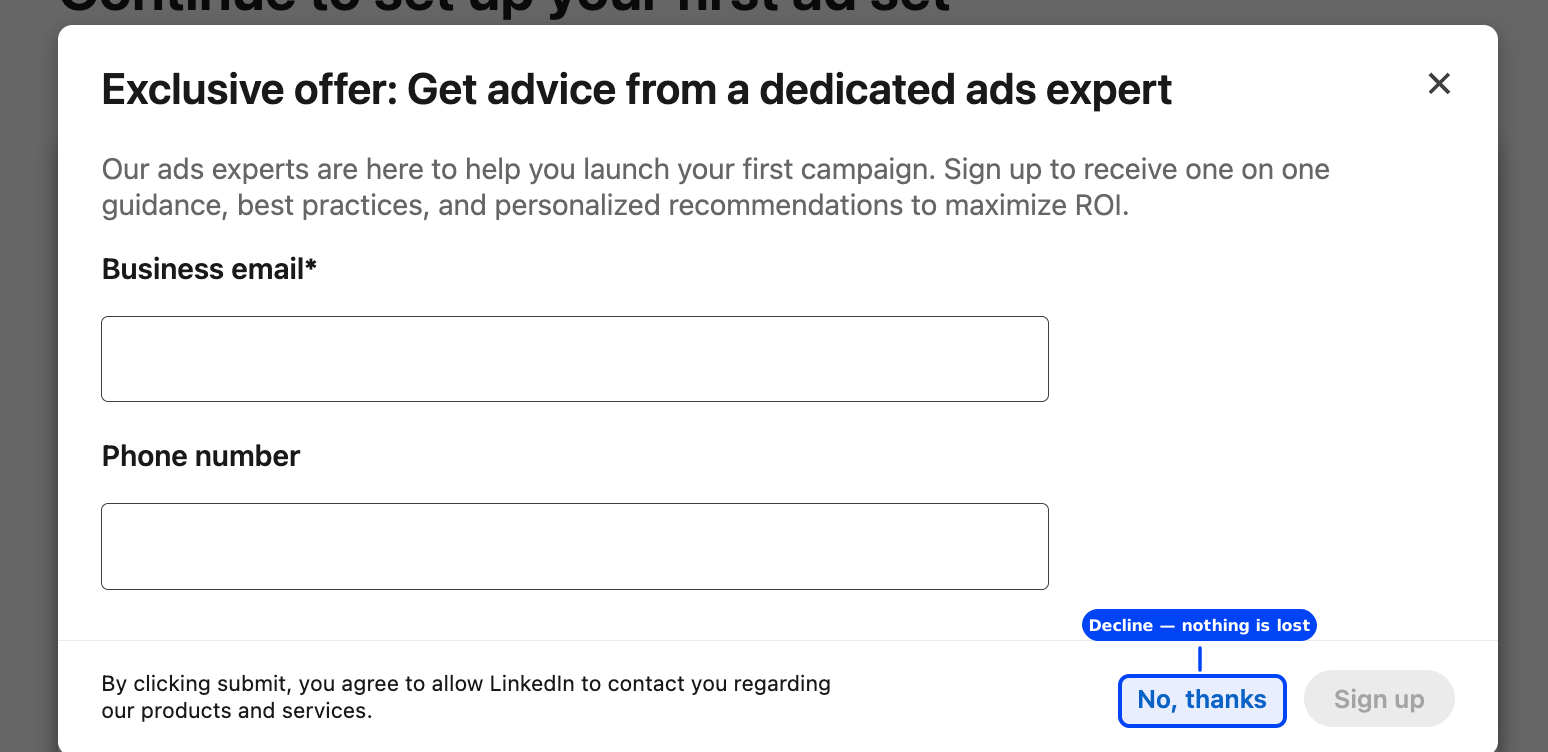
This asks for a business email and a phone number so a LinkedIn ads specialist can call you. It is a sales form, and declining it has no effect on the account. Click No, thanks and you land on your new account's overview.
Step 6: Billing, and what "On hold" means
Here is the account, about thirty seconds old:
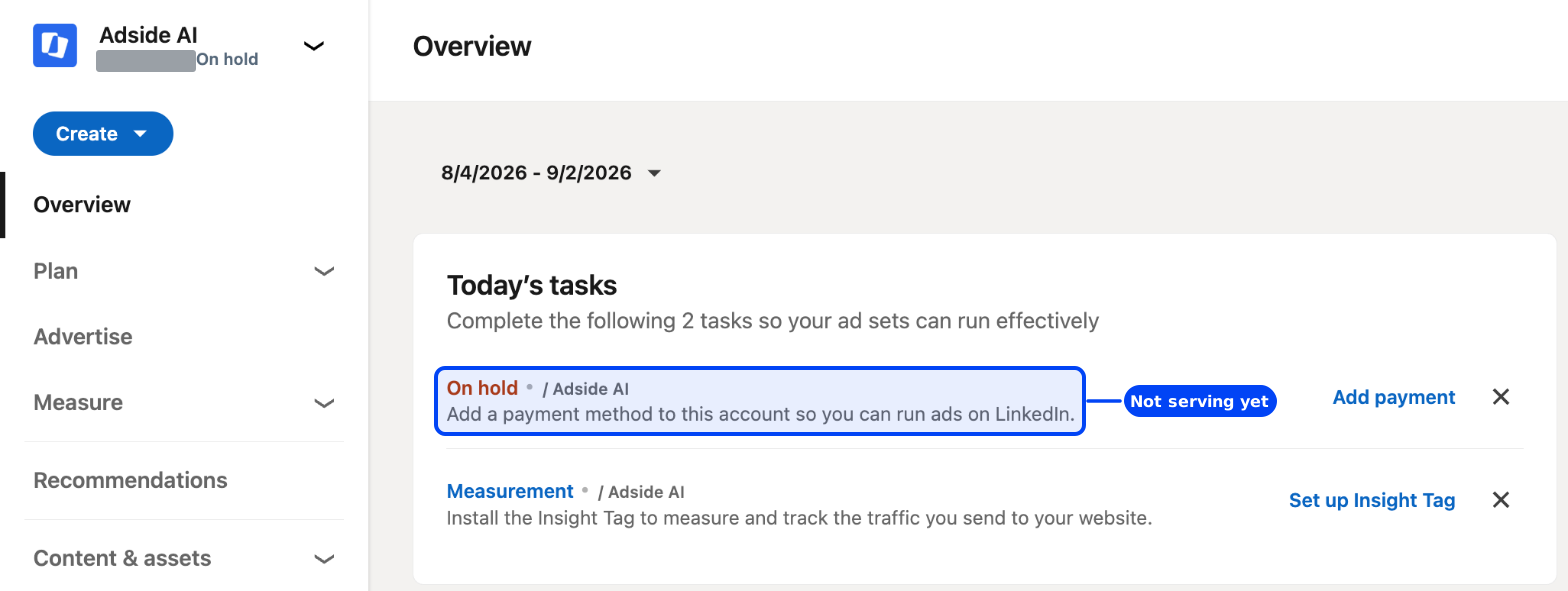
It exists. It has an ID. It appears in your account list. And it is On hold, which is LinkedIn's way of saying the account is fine but will not serve anything until it can be billed.
This is worth being precise about, because it is where LinkedIn differs from Google. Google's signup is not finished until billing is submitted — with it incomplete, the account's own access page bounces you back to the payment step. LinkedIn is softer: the account is genuinely created, genuinely yours, and genuinely shareable. It simply cannot spend.
So you can stop here. If the point of today was to make the account exist, it exists, and someone can add billing later. When you do go to Billing, an unfunded account shows this:
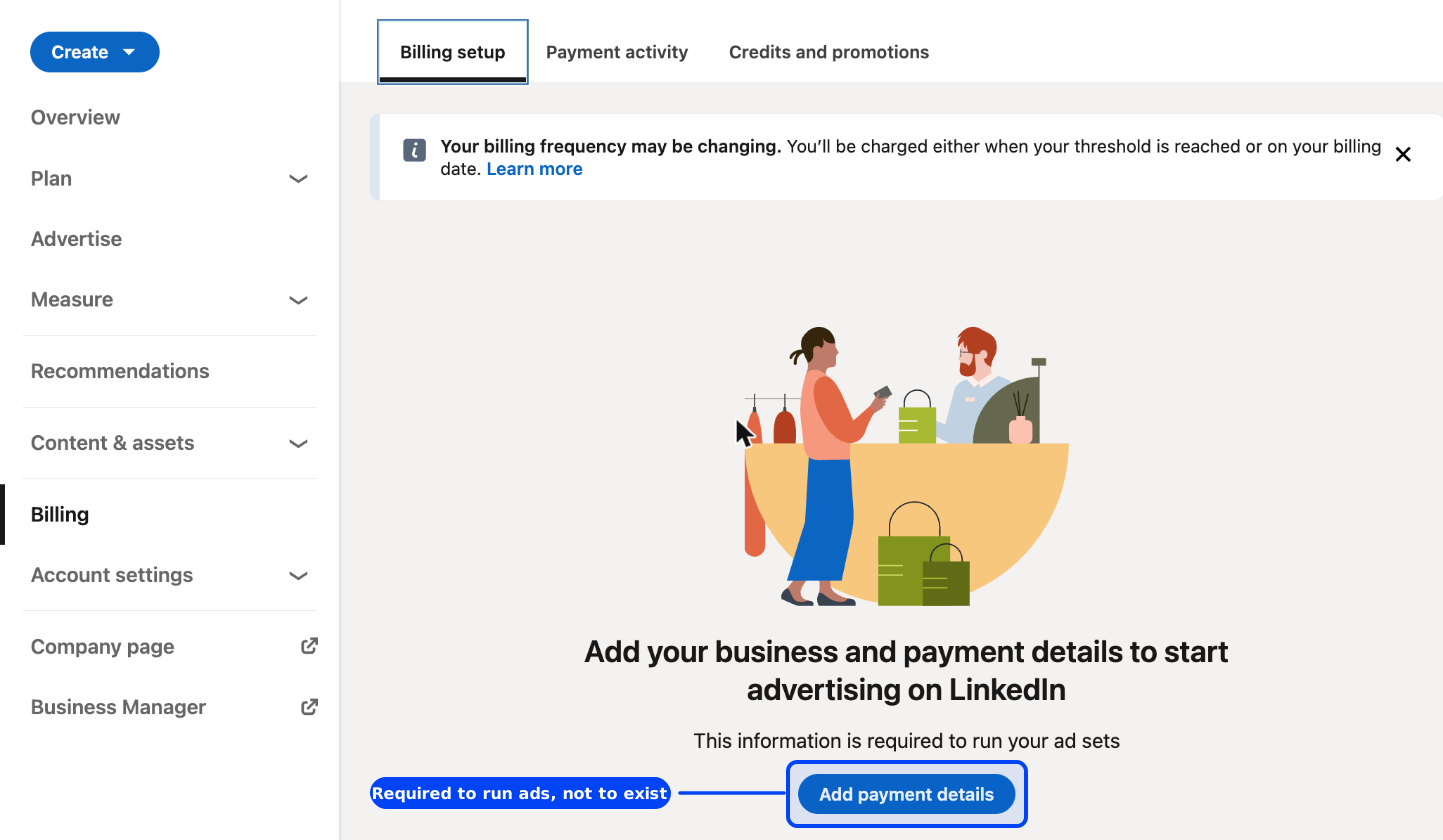
Once a card is on the account, LinkedIn bills on a threshold: you are charged when your balance passes it, or on the first of the month, whichever comes first. New accounts start at a low threshold that rises as payments clear.
Step 7: Find your account ID
Your account ID is the nine-digit number in the left rail, directly under the account name, and it is also in the URL of every page inside the account. It is the account's identity: it is what appears in account lists, what support asks for, and what anyone needs in order to request access.
If someone else is going to run it
Go to Account settings → Manage access. You will find exactly one person on the account — you — holding both account manager and billing admin.
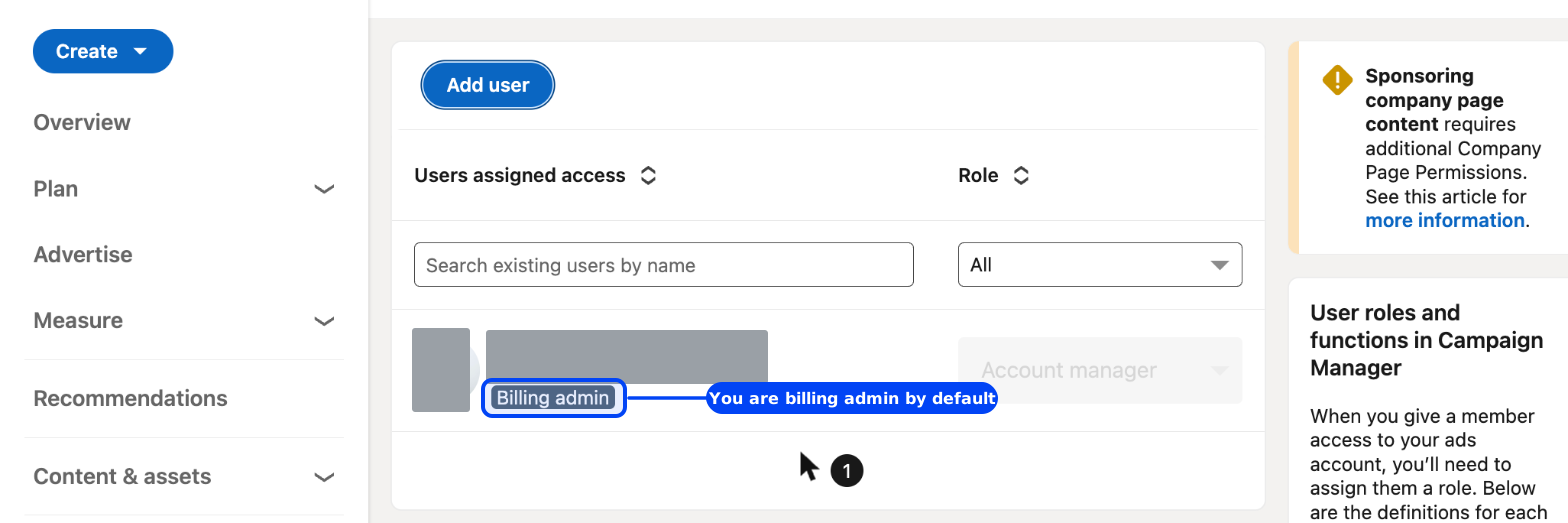
Click Add user, search for the person by name, and give them a role. Account manager can change settings, see billing and build ads; campaign manager can build and edit ad sets but not touch settings; viewer can only look. Billing admin is separate and additive — grant it only if that person should see and change how the account is paid for.
One caveat that will save an afternoon: if the ad account sits inside a Business Manager, you cannot grant access from this screen at all. Access has to be handed out through Business Manager's own People section instead, and Campaign Manager will point you there. An account created the way this guide describes is not in a Business Manager, so this screen is the right place.
Do not share your LinkedIn password, and be wary of anyone who asks for it. LinkedIn's whole access model exists so that someone can run an account without ever holding your login — and a person who asks for the password instead is telling you how they handle everyone else's.
What the other guides get wrong
Three things, consistently:
They treat currency as the only permanent decision. It is the one the interface warns about, so it is the one that gets copied into every guide. The Page association is equally permanent, is documented as such by LinkedIn itself, and is far easier to get wrong — because unlike currency, it is chosen from a search box full of near-identical options.
They send you into the Page field typing. Every walkthrough describes "search for your Company Page and select it." Nobody mentions that an empty focused field already lists the Pages you administer, which is both faster and the only version of this step that cannot go wrong.
They stop at "click Create account" and call it done. What actually happens next is a campaign builder with an objective pre-selected, and then a lead-capture form standing between you and the exit. A reader who was told the flow ends at Save will reasonably assume they are supposed to build the campaign.
FAQ
Can I create a LinkedIn ad account without creating a campaign?
Yes. Saving the account drops you into an ad set builder, but there is a grey link at the bottom left of that screen reading "Not ready for a campaign? Create later." It sits opposite the blue Next button and is easy to miss. Clicking it opens one more dialog offering a call with a LinkedIn ads expert — decline it with "No, thanks" and you land on your account overview with no campaign attached.
Can I change the LinkedIn Page on an ad account later?
No. LinkedIn's own help documentation states that the LinkedIn Page cannot be changed once it has been added to an ad account, and the Edit account screen bears this out: the Page appears as plain text with no control beside it. To advertise for a different Page you have to create a different ad account. Note that if you create the account without a Page, you can add one afterwards — but that addition is itself permanent.
Can I change the currency later?
No. The currency is chosen when the account is created and cannot be changed, which LinkedIn warns you about directly under the field. Every invoice, bid and report for the life of the account is denominated in it. The only fix is a new ad account with the right currency.
Do I need a credit card to create the account?
No. The account is created, assigned an ID and listed without any payment method. It sits with the status "On hold" and cannot run ads until billing is added — LinkedIn's billing tab says the details are "required to run your ad sets," not required for the account to exist. You can hand the account to someone else in this state.
Do I need a LinkedIn Page to advertise?
You can create the ad account without one, but you will not have access to the full set of ad formats — sponsored content has to be posted by a Page. You also need to be an admin of that Page to advertise on the company's behalf. If your company has no Page yet, there is an "Add new" link beside the field that creates one during signup.
What does someone need in order to run the account for me?
Add them under Account settings → Manage access and pick a role — account manager for full control, campaign manager to build and edit ad sets, viewer for read-only. Billing admin is a separate, additive permission. They do not need your password. If the account happens to sit inside a Business Manager, access has to be granted through Business Manager instead.
Sources
- LinkedIn Marketing Solutions Help, Create an ad account in Campaign Manager as a new advertiser.
- LinkedIn Marketing Solutions Help, Account settings in Campaign Manager.
- LinkedIn Marketing Solutions Help, Available currencies for your ads account.
- Account creation walked end to end in Campaign Manager, 1 September 2026. All screenshots from that run.
Setting up the same account elsewhere? We walked Google Ads and Meta the same way — and the three differ on every point that matters, including which settings are permanent and whether billing blocks anything. We did Google Tag Manager too, where nothing is billed at all and the gate is getting a snippet onto the site.